Find out whether something drove your browser while you were away
The pages a program opened in your Chromium browsers while nobody was browsing, each address in full, and what ccdeck does when it finds more.
Before you start
- ccdeck running.
npx ccdeckopenshttp://127.0.0.1:4317. Browser Watch reads only visits made after this deck started, so it has to have been running during the time you are asking about. - A Chromium browser whose profile has been opened at least once: Google Chrome, Google Chrome Beta, Chromium, Brave, Microsoft Edge or Vivaldi; also Google Chrome Canary on macOS and Windows, Arc on macOS, and Chromium (snap) and Brave (Flatpak) on Linux. Firefox and Safari are not read.
- A way for the deck to read the browser’s history database: Node.js 22.13 or newer, or a
sqlite3command on its PATH. macOS shipssqlite3; Windows does not. - For the watch to record while you are away, a deck page left open: a browser tab, or the window of the desktop app. The check every five minutes runs in the page, and the deck has no timer of its own.
Steps
-
Open Browser Watch
Click Browser watch in the topbar, the eye after Machine, or press B. On a window narrower than 1440 px the button is the eye alone.
The eye has a pupil while the watch is on or a finding is unread, and a slash through it otherwise. While the watch is on, its tooltip reads “Browser watch — watching; the deck is keeping its own copy (B)”. A number on the eye counts the episodes that began since you last closed the panel, and closing the panel clears it.
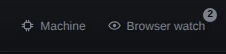
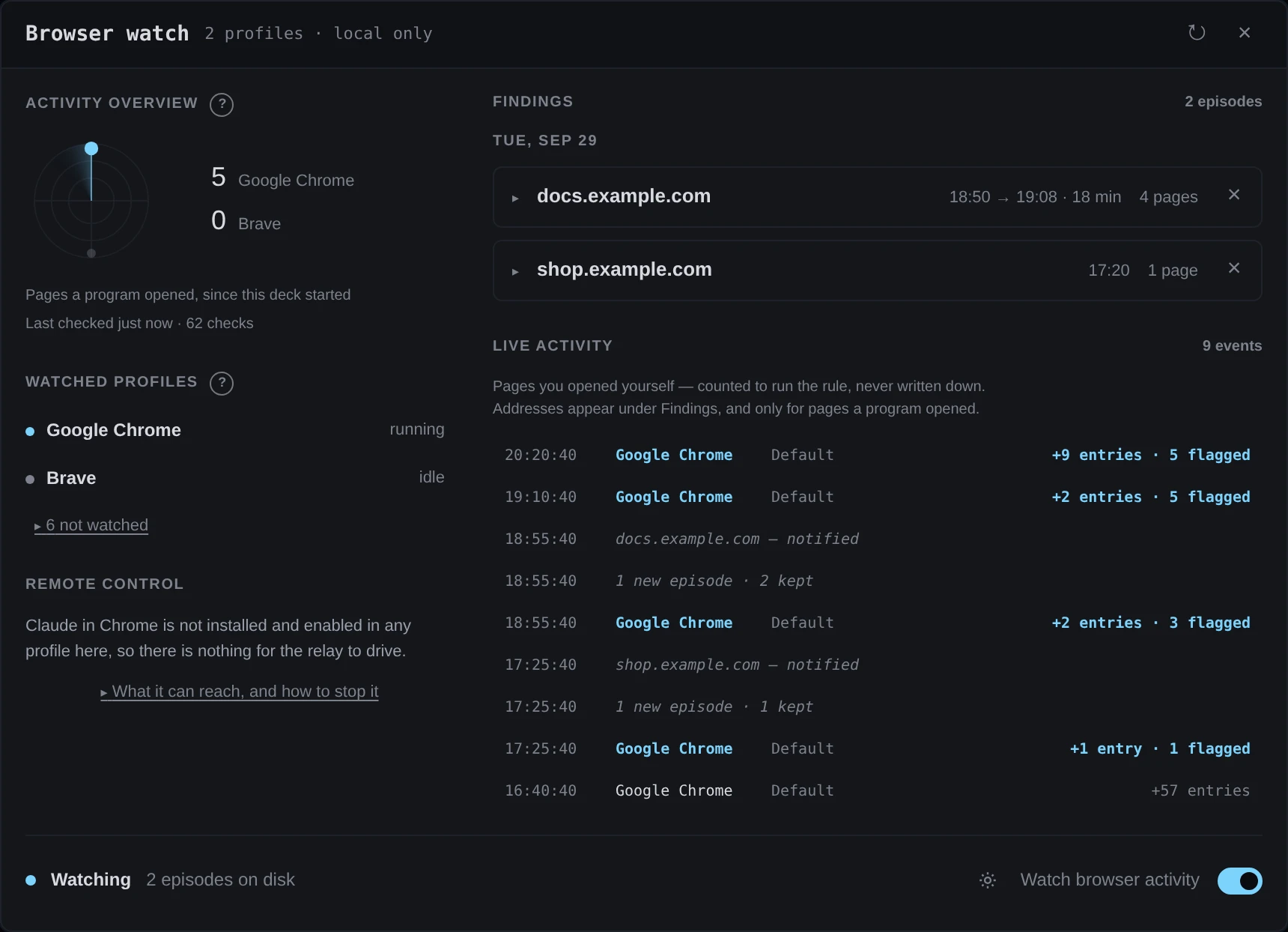
Demo data The pupil shows the watch is on or a finding is unread; here both. The 2 counts two episodes that began after the panel was last closed. On the first look the panel says “Reading each browser’s history. The first look copies the file, which takes a moment.” Close it with Esc, its ×, or a click outside it. B does not close it.
-
Read what the panel covers
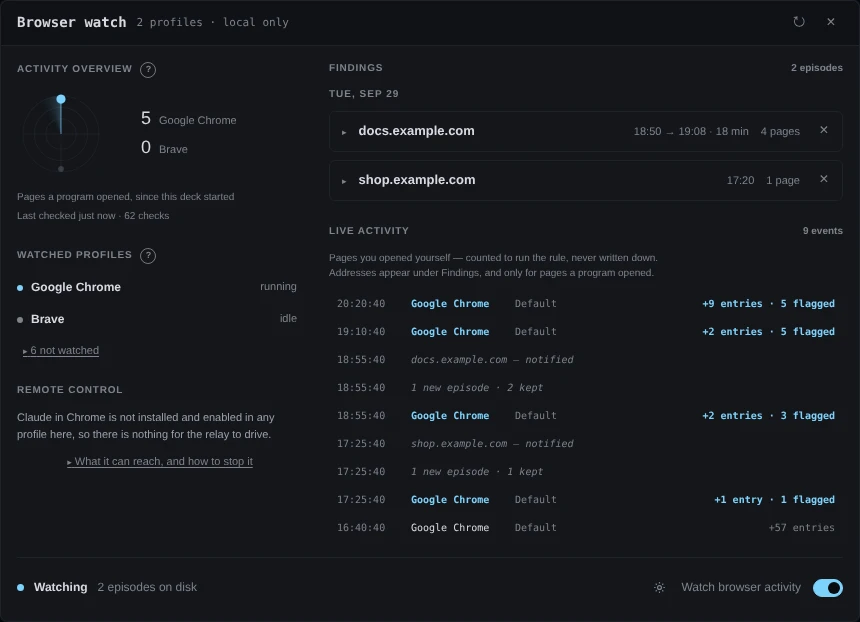
The header says how much is watched, as in 2 profiles · local only. The left column has three parts:
- Activity overview: for each watched browser, how many pages a program opened since this deck started, and when the deck last checked.
- Watched profiles: each browser it reads, marked “running” or “idle”. 6 not watched opens the list of the other browsers it knows, which are not installed or have never been opened.
- Remote control: whether Claude in Chrome is live in a profile here, which would let a Claude Code session signed in to your Anthropic account drive this browser. What it can reach, and how to stop it opens a command that blocks the relay, for you to paste into a terminal; ccdeck never runs it.
On the right, Findings lists what a program opened while nobody was browsing. Live activity under it adds a line each time a browser’s history grew, as in +9 entries · 5 flagged. The pages you open yourself are counted there and never written down.
While the panel is open it reads the browsers again every 10 seconds. ↻ in the header (“Re-read every profile now”) copies each history again, at most once a minute.
 Open the full-size picture
Demo data Google Chrome is running and Brave is not. Both findings are in Google Chrome, and Live activity shows the reads that found them. -
Open a finding
Each card is one episode: the host, when it started and ended, how long it ran and how many pages it covered. Cards sit under the day they started, newest first. Click a card to list every address the program opened, each with its time, written out in full.
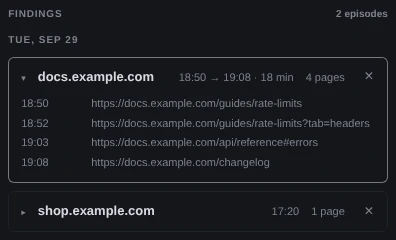
Demo data The docs.example.com card lists its four pages. The part after ? and the part after # are kept. An episode is one host in one browser. Its pages stay together while no two in a row are 15 minutes or more apart, so a 40-minute run with short pauses is one card.
-
Know what counts as “while you were away”
When a page is opened through an API — by a command such as
open, over the browser’s debugging protocol, or by an extension — Chromium marks the visit in its history. A visit without that mark is you. A marked page becomes a finding only if nobody opened a page by hand in the same browser profile for the time set in Nobody browsing for, before it and after it. That is 15 minutes unless you change it (step 6).The deck has no idle timer and does not watch the keyboard: it goes by the browser’s own history alone. It never reports its own tabs, which are
127.0.0.1,localhostand[::1]on ports 4317 to 4400 and any port a running deck registered. It reads nothing from before this deck started.While you have browsed within that time, the overview counts down to when a program’s page would count, as in “You are browsing — a program page would count in 12m 30s”.
A finding is usually your own agent working in the browser, and the panel says so. It reports what a program opened and leaves the judgement to you.
-
Check that the watch is on
The footer reads Watching while the watch is on and Paused while it is off, followed by how many episodes are on disk. The Watch browser activity switch at its right end turns it on and off. It is on unless you have turned it off.
- On: every check reads the browsers, including the one the page makes every five minutes in the background. New episodes are kept and written to a log file (step 8), and your reaction runs (step 6).
- Off: the background check reads no browser. Opening the panel still reads the browsers, but shows only what this deck has seen since it started. Anything an earlier run kept is hidden until you turn the switch back on, and nothing new is kept.
Each time you flip the switch, Live activity adds a line: “watch on — keeping its own copy” or “watch off — reading live only”.
-
Choose what happens when it finds one
Click the gear in the footer; its tooltip says “Settings”. Two menus open above the footer:
- Nobody browsing for: 1, 5, 15, 30 or 60 min, with 15 as the default. A shorter time catches more, including more of your own work.
- When it finds one: notify me, the default; close the tab, offered only on macOS; or quit the browser.
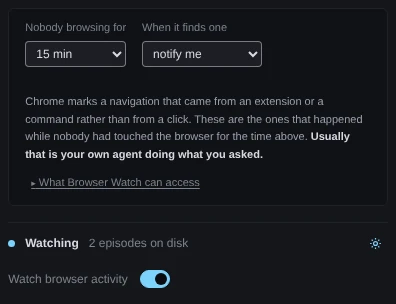
Demo data The two defaults. This deck runs on Linux, so its menu holds notify me and quit the browser. Every reaction also shows a system notification titled “Browser watch”, as in “docs.example.com — 4 pages while you were away”, unless the deck was started with
AGENTS_DECK_NO_NOTIFY=1. The Sound menu’s Notifications while closed switch does not change it.Closing the tab is only cleanup: the page has already loaded by then. Only quitting takes the browser away from whatever was driving it. A reaction runs once for each new episode, after the episode is written down, and only while the watch is on; the menu is greyed out while it is off. Live activity then says what the reaction did, as in “docs.example.com — notified”.
-
Dismiss a finding you have checked
Click the × beside its card. The episode leaves the list for good, even if the program goes on opening pages in the same run, and Live activity adds “dismissed docs.example.com”. Its addresses stay in the log file.
-
Find the record on disk
While the watch is on, episodes are kept in
~/.claude/agent-dag/browser-watch/state.json, or in the same place underCLAUDE_CONFIG_DIRwhen that is set;CCDECK_HOMEdoes not move it. The file holds up to 500 episodes, your dismissals and the settings.Beside it,
watch.logis the plain-text copy. For each new episode it has one line with when it started, the host, the number of pages, how long it ran and the browser, then every address indented under it with its time. An episode that grows after it was first found is updated instate.json, andwatch.logkeeps it as first written. The log rolls over towatch.log.1at 2 MiB. On macOS or Linux, follow it with:tail -f ~/.claude/agent-dag/browser-watch/watch.logOnly flagged episodes are kept, never your own browsing. To read a history, the deck copies the browser’s
Historyfile into a private folder underbrowser-watch/staging/and deletes the copy after one query. It makes the copy only when the browser has written to its history since the last look. It does not read cookies, saved passwords or page contents.Nothing from your history leaves the machine. For the Remote control part, a read also looks at the system’s hosts file and at the settings file of any profile that has Claude in Chrome, and, at most every 30 seconds, makes one DNS lookup of the name the relay uses where the
digcommand is installed. What Browser Watch can access, under the note in the settings, lists what the watch reads, keeps and never reads.
If something goes wrong
“No browser on this machine has a profile to read.”
None of the browsers the deck knows has a profile yet. Open one of them once; it is watched from then on. Firefox and Safari are not read.
“… could not be read — no-sqlite-reader: …”
The deck has no way to read the history database. Run it on Node.js 22.13 or newer, or put a sqlite3 command on its PATH. For another reason after the dash, click ↻ after a minute. The watch goes on with the profiles it can read.
A program drove the browser, and nothing is under Findings
Check each of these. You opened a page by hand in the same profile within the Nobody browsing for time. The visits came before this deck started. The pages were on the deck’s own port. The browser ran from a folder of its own, such as an automation tool’s throwaway profile: only the browsers’ usual folders and their Default and Profile N profiles are read. You dismissed the episode earlier.
Lines like +9 entries in Live activity show that the profile is being read. To catch more, set Nobody browsing for to 1 or 5 min.
No notification arrived, or it arrived late
No deck page was open: the background check runs in the page, so the reaction runs on the first check after a page opens. The deck was started with AGENTS_DECK_NO_NOTIFY=1, and Live activity says “not notified” with that name after it. On Linux the notification goes through notify-send; when it fails, Live activity says “could not notify”. The watch is off.
“When it finds one” is greyed out, or offers no “close the tab”
Greyed out means the watch is off; its tooltip says “Turn watching on to arm a reaction.” Turn on Watch browser activity. close the tab is offered only on macOS, the one system where the deck can close a single tab by its address.
Two decks are running, and only one writes the record
That is by design. Of the decks on the machine that have Browser Watch, only the one on the lowest port writes the record and runs the reaction, so an episode is written and reacted to once. The others show the same findings.