Install the desktop app
ccdeck running as an app on macOS, Windows or Linux, its icon in the menu bar or tray, and notifications on for when its window is closed.
Before you start
- Claude Code, Codex, or both, installed on this computer. The app shows their sessions. It does not install either of them.
- No Node.js. The app runs the deck with its own binary. It runs the Claude Code hook with the system’s
nodewhen there is one, and with its own binary when there is not. - macOS on Apple silicon or Intel, Windows on x64, or Linux on x86-64. There is no build for Windows or Linux on ARM.
- On Linux, a desktop with a system tray for the icon. KDE and waybar have one. GNOME needs the AppIndicator extension.
- A deck you already run with
npx ccdeckcan stay running. The app uses it, and replaces it only when it is older than the deck the app carries.
Steps
-
Download the file for your computer
Each link fetches the newest release, which can be newer than the one this guide was checked against. The file names carry no version, so they stay the same from one release to the next.
- macOS, Apple silicon:
ccdeck-mac-arm64.dmg - macOS, Intel:
ccdeck-mac-x64.dmg - Windows, x64:
ccdeck-win-x64.exe - Debian or Ubuntu, x86-64:
ccdeck-linux-amd64.deb - Any other Linux, x86-64:
ccdeck-linux-x86_64.AppImage
If you are not sure which Mac you have, run this in Terminal. It prints
arm64on Apple silicon andx86_64on Intel.uname -m - macOS, Apple silicon:
-
Install it
macOS. Open the
.dmgand drag ccdeck into Applications. Run it from there, not from the disk image: an update replaces the app where it runs, and a disk image is read-only.Or install it from a terminal instead. This script downloads the build for your Mac’s processor, refuses it unless it carries ccdeck’s signature, puts it in
/Applications(or~/Applicationswhen/Applicationsis not writable), quits a ccdeck that is running, and opens the new one. It is for macOS only.curl -fsSL https://ccdeck.dev/install.sh | shWindows. Run
ccdeck-win-x64.exe. It installs for your user only, with no administrator prompt, so later updates can replace it in place. The installer is not code-signed, so SmartScreen stops the first run: click More info, then Run anyway.Debian or Ubuntu. Open
ccdeck-linux-amd64.debwith your software installer, or install it with apt from the folder you saved it in. It is a system package that declares its own dependencies, and it adds ccdeck to the applications menu.sudo apt install ./ccdeck-linux-amd64.debOther Linux. A browser saves the AppImage without permission to run, so it does nothing until you make it executable. It carries its own FUSE runtime and does not need
libfuse2. From the folder you saved it in:chmod +x ccdeck-linux-x86_64.AppImage && ./ccdeck-linux-x86_64.AppImage -
Open ccdeck
macOS. Open ccdeck from Applications. The first time, macOS stops it: ccdeck is signed with its own certificate, but it is not notarised by Apple. Open System Settings, then Privacy & Security, and click Open Anyway for ccdeck. Only the first launch asks. If you installed from a terminal, macOS does not ask at all, because a file fetched with
curlcarries no quarantine flag.Windows and Linux. Open ccdeck from the Start menu or the applications menu, unless it is already running, as an AppImage started in the previous step is.
The icon appears in the menu bar, or in the tray on Windows and Linux. The app then looks for a deck that is already running: one started by
npx ccdeck, by a login item, or by the app last time. If there is none, it starts its own, onhttp://127.0.0.1:4317or a free port from 4318 to 4400. While it does, its menu reads Starting the deck….The window then opens on the deck, without taking the focus from what you are doing. On the first start, if Claude Code is on the computer, the deck adds its hook to
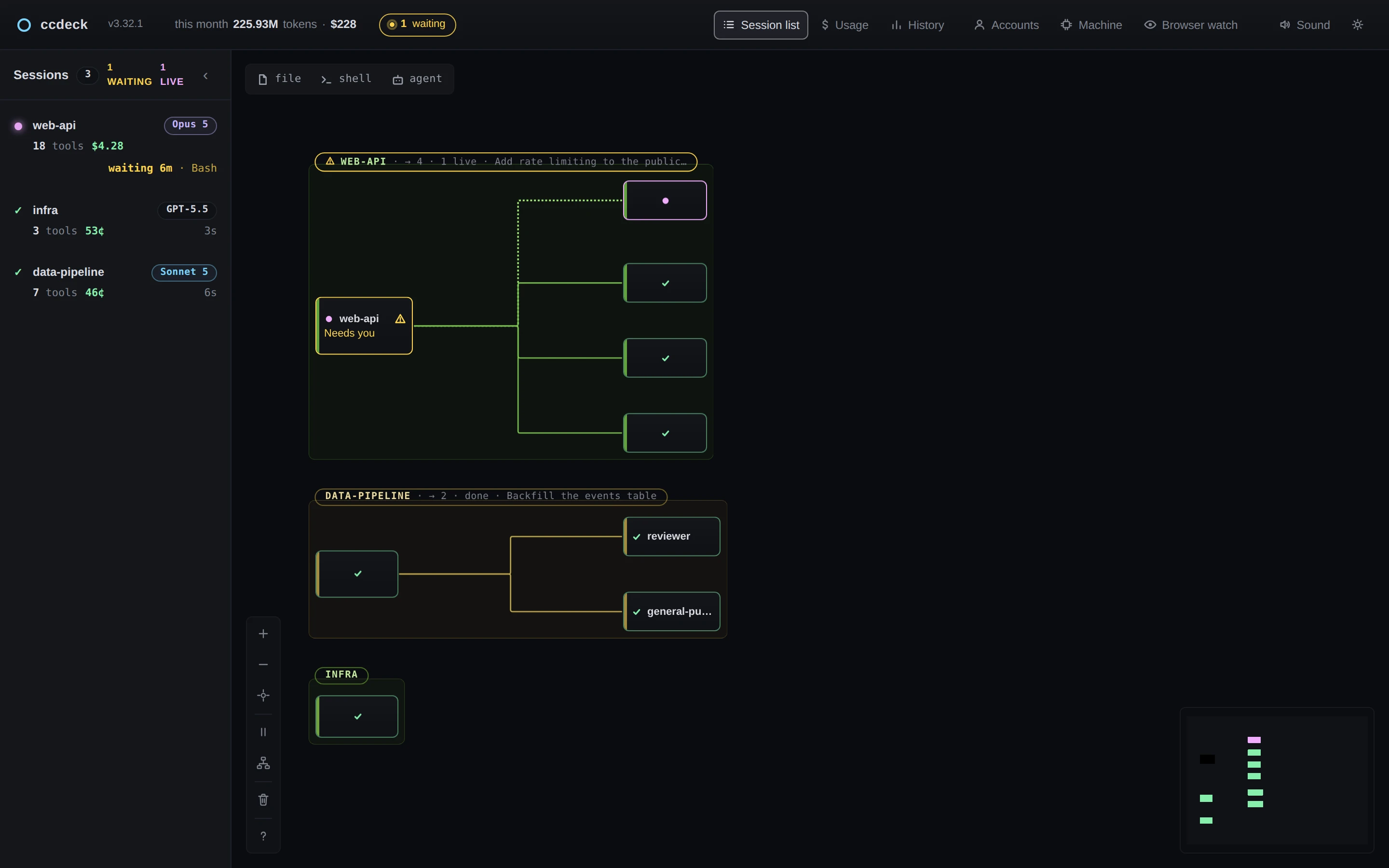
~/.claude/settings.json, asnpx ccdeckdoes, and the tour What the deck shows you opens once.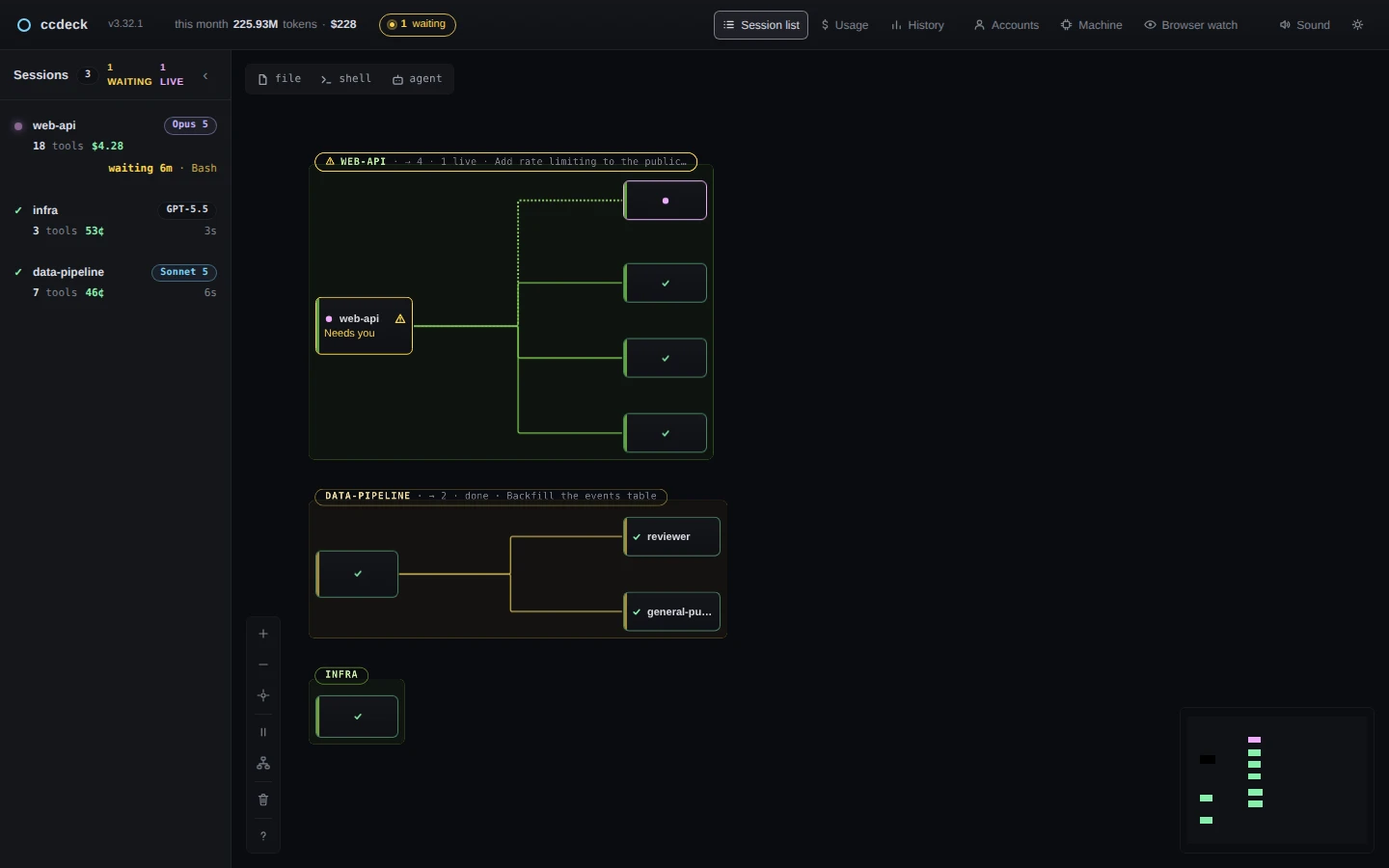 Open the full-size picture
Demo data What the window shows is the deck’s own page, the same one npx ccdeckopens in a browser. The window’s own frame is not in the picture. -
Answer the first-run question
The app asks one question, titled ccdeck lives in the menu bar, with the box Start ccdeck when I log in ticked. Leave the box ticked for the app to start when you log in, or click it to clear it, then click OK. It is asked once. On Windows and Linux the question still says “menu bar”: it means the tray.
If the npm version set up a login item of its own, a second question follows: Another ccdeck starts when you log in. Replace it with the app removes that login item, since the app starts the deck itself. Keep it leaves it in place.
Linux. Starting at login is not known to work there. ccdeck has no autostart code of its own for Linux: the box, and Start at login in the icon’s menu, use Electron’s login-item setting, which Electron documents for macOS and Windows. For the same reason, click Keep it on Linux if you rely on the npm login item.
-
Find the icon
The icon has four marks: a grey ring when nothing is running, a blue ring with a dot in its centre while a session is running, an amber disc when a session is waiting on you, and a red ring with a quarter missing when the app has lost the deck.
On macOS the icon is monochrome, and the number of sessions waiting on you is written beside it. On Windows and Linux the icon is in colour and carries no number. The count is in its tooltip, for example “(2) ccdeck — 2 sessions waiting for you”, and in the first row of its menu. It is the same number as the waiting chip in the deck’s topbar.
Claude Code only. The count is of sessions stopped on a permission prompt or a question, which the deck learns from Claude Code’s hook. Codex is read from its rollout log, which carries no such signal, so a Codex session is never counted.
On macOS, a click opens the menu. On Windows and Linux, a left click opens the window, and the menu is on the right click. From the top, the menu has:
- a status row, such as 2 sessions waiting for you, 1 session running or Idle
- one row for each waiting session, up to six, such as “web-api — needs permission, 6m”, each of which opens the window
- one row for each incident that Anthropic’s or OpenAI’s status page reports on what your sessions use, such as “Claude · partial outage — status page”, which opens that status page in your browser
- Start the deck, only while no deck is running
- Open ccdeck and Open in browser
- Notifications while closed and Start at login, two check boxes
- the app’s version, such as ccdeck v3.32.1, and under it the update row
- Restart ccdeck and Quit ccdeck
The app asks the deck about incidents each time it connects to it, then every five minutes while a session is running or waiting; while nothing is, it does not ask. To answer, the deck reads the public status page of each CLI it watches,
status.claude.comfor Claude Code andstatus.openai.comfor Codex, and sends no credentials. A provider with nothing wrong has no row.Closing the window does not quit the app. The icon and the deck keep running, and on macOS the app leaves the Dock and Cmd + Tab until its window opens again. Only Quit ccdeck ends the app. It stops the deck too, but only a deck the app started itself.
Linux. The panel can lose the icon, for example after the app updates itself or when the panel restarts. The app notices within about a minute and restarts by itself to put the icon back, once its window has been closed or out of focus for a full minute, the same wait an update has (step 7). It does this at most once every six hours, and not again after a restart that did not bring the icon back.
-
Turn on notifications for when the window is closed
They are off until you turn them on, in the app as well. The first-run question does not change that. Click Notifications while closed in the icon’s menu, so that it is ticked. The same switch is in the window: press V, or click Sound in the topbar (in a window narrower than 1440 pixels it is a speaker icon without the word), then click the Notifications while closed switch to turn it on. Both places change one setting.
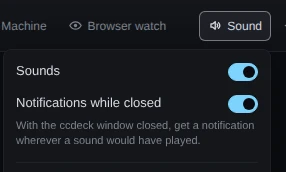
Demo data Inside the app, the note under the switch talks about the ccdeck window. In a browser tab it talks about deck tabs instead, and a Browser notifications section follows. The deck’s permission to raise notifications was supplied to the page for this picture. With the switch on, and no ccdeck window or browser tab of the deck open, the app raises a notification each time an open deck would have played a sound: when a turn finishes, and when Claude Code stops to ask for permission or for input. Its title is the session’s folder name. Its text is the agent’s last message, cut at 160 characters, or Claude Code’s own sentence. Clicking it opens the window. On macOS it plays the deck’s own tones; on Windows and Linux, the system’s sound. A session’s prompts are repeated at most once every two minutes.
Claude Code only. Notifications for permission prompts and questions come from Claude Code’s hook. A Codex turn can notify only that it ended, as “Finished its turn”, because its rollout log carries no message to quote. The topbar shows the Sound button only when the deck sees Claude Code, so with Codex alone, use the icon’s menu.
-
Let the app update itself
About 15 seconds after each start, and every six hours after that, the app looks for a newer release of ccdeck on GitHub. It downloads one, then checks it before calling it ready. On macOS it checks the file’s SHA-256, a signature by ccdeck’s update key, and that the new app has the same identity as the running one: the same app id and the same certificate. On Windows and Linux it checks electron-updater’s SHA-512 and the same update-key signature. A download that fails a check is not installed.
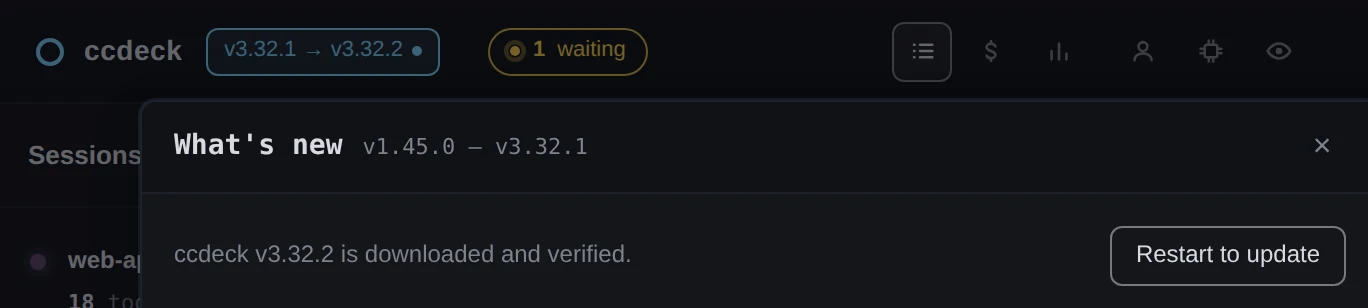
The update row in the icon’s menu follows it: Downloading ccdeck v…, then Restart to update to v…. In the window, the version chip in the topbar shows both versions. Click it to open What’s new, where Restart to update comes first. The notes under it are the running deck’s; the new version’s notes come with it.
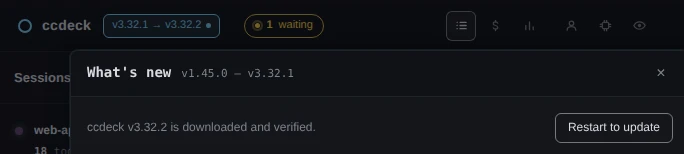 Open the full-size picture
Demo data The chip and the dialog as they appear once an update is ready. The ready update was supplied to the page for this picture. A ready update installs when you click Restart to update, in the menu, in What’s new, or in the question “ccdeck v… is ready”, which the window asks once for each version, while it has the focus and no session is running or waiting. It also installs when you click Restart ccdeck, when you quit the app, and by itself once the app has gone a full minute with its window closed or out of focus and no deck starting. When the app restarts by itself, to install an update or, on Linux, to put back its icon, its window comes back only if it was open before: a window you closed stays closed. On macOS, quitting with an update ready opens the app again in the new version.
It does not wait for your agents. The quiet minute is about the window, not your sessions, so an update can install while a session is in the middle of a turn. The deck is gone for a second or two while the app restarts. The hook still exits without a word to the agent, so the agent carries on; that moment is missing from the canvas.
The deck inside the app never updates itself through npm, so the deck’s own update banner does not appear in the window. The app is updated as a whole.
If something goes wrong
The AppImage does nothing when opened
The browser saved it without permission to run. Run chmod +x ccdeck-linux-x86_64.AppImage in the folder it is in, then open it again. A missing libfuse2 is not the cause: the AppImage brings its own FUSE runtime.
Linux: the app runs, but there is no icon
If the desktop has no tray, the icon has nowhere to go. On GNOME, install or turn on the AppIndicator extension; KDE and waybar have a tray already. If the icon was there and went, after an update or a panel restart, the app notices within about a minute and restarts by itself to put it back, once its window has been closed or out of focus for a full minute. It does this at most once every six hours, and not again after a restart that did not bring the icon back. It asks the panel through systemd’s busctl; without it, the app cannot tell that the icon is gone. Until the icon is back, opening ccdeck again brings its window back, because only one copy of the app runs at a time.
The menu says No deck running
The deck stopped, for example after ccdeck --stop. The app goes on looking for a deck, but does not start its own again by itself. Click Start the deck in the icon’s menu. The deck’s output is in deck-app.log, in the app’s logs folder.
No notification arrives with the window closed
Check three things. Notifications while closed is ticked, since it starts off. No page of the deck is open: the app’s window or a browser tab on the deck’s address; while one is, that page plays its sounds instead. The app opens its window by itself each time it starts, at login too, except after a restart it made by itself with the window closed. And the same session did not already notify in the last two minutes.
Notifications while closed is greyed out in the menu
The app has not read the deck’s settings yet: no deck is attached, or the app is still reading the events of the one it found. Wait for the status row to show a count, a running session or Idle, or click Start the deck.
The version row reads ccdeck v3.32.0 · deck v3.32.1
The second version is the deck’s. The app is using a newer deck that was started elsewhere, such as by npx ccdeck. It keeps a deck that is as new as its own or newer, and replaces only an older one. Nothing needs doing. Quit ccdeck does not stop that deck; npx ccdeck --stop does.
macOS: ccdeck is not in the Dock or in Cmd + Tab
That is by design while its window is closed: the app lives in the menu bar. Click the icon, then click Open ccdeck, or open ccdeck from Applications.
You removed the app, and its hook is still in Claude Code’s settings
Removing the app does not remove the hook entry the deck wrote to ~/.claude/settings.json. Run npx ccdeck --uninstall to remove it; that command needs Node.js.