Update ccdeck and restart it
ccdeck on its newest release, the deck restarted into it, and a choice made about whether it updates itself while you are away.
Before you start
- A deck started with
npx ccdeck, or withccdeckafternpx ccdeck --installornpm i -g ccdeck. Those two update from npm, as below, and the notice under the topbar is worded for the one you have. - For those two, Node.js 18 or newer and a connection to
registry.npmjs.org. - A deck that writes its event log, which it does unless you started it with
--no-persist. Without the log, the page does not restart the deck, and the deck never updates itself. - The desktop app updates itself from ccdeck’s GitHub releases instead, and shows none of the notices in this guide. Install the desktop app covers its updates in step 7.
Steps
-
See which version is running
The version chip beside the ccdeck wordmark, at the left end of the topbar, shows the version the deck is running. From a terminal:
npx ccdeck --statusIt lists each running deck with its version, pid, uptime and address, and marks the one a plain
npx ccdeckwould open withopens this one. It starts nothing, and it does not say whether a newer release exists.npx ccdeck --versionanswers a different question: it prints the version of the copy npx ran, not the version of the deck that is running. -
Read the update notice
The deck asks npm for the newest release when it starts, and about once an hour after that. While a deck tab is open, the page has it ask again every 15 to 20 minutes. Clicking the version chip asks at once, and opens What’s new.
When npm has a newer release, the chip turns amber and gains a dot, still showing the version you are running, and a notice appears under the topbar: “ccdeck v3.31.0 is out — you are on v3.30.0.” What comes after it depends on how this copy was installed:
- Started with
npx ccdeck: Update & restart, then “npx cannot upgrade in place, so the deck re-runs:” and the commandnpx -y ccdeck@latest. - Installed globally: Update now, then the command
npm i -g ccdeck@latest. - Any other case: the command only, after the reason there is no button. If something goes wrong lists the reasons.
Click the command to copy it.
 Open the full-size picture
Demo data The notice on a deck started with npx ccdeck, one release behind. The newer release on npm was supplied to the page for this picture. - Started with
-
Update
Started with npx. Click Update & restart. The button reads fetching… while npx fetches
ccdeck@latest, and the deck keeps running meanwhile. The deck then hands its port to the new copy, and the strip under the topbar reads “Fetching the new version with npx — this can take a minute…” until the tab reconnects, on the same address. Nothing is installed globally.Installed globally. Click Update now. The deck runs
npm install -g ccdeck@latest --no-audit --no-fund --loglevel error, and the button reads installing…. When npm has finished, the new version is on disk, the deck is still running the old one, and the notice changes to the one in step 4.From a terminal instead. For a deck started with npx, run the command its notice shows:
npx -y ccdeck@latestIt stops the older deck, printing a line such as
stopped the deck on 4317withit was v3.30.0, and starts the new version. For a global install, runnpm i -g ccdeck@latest: the running deck’s notice then changes to the one in step 4, or runningccdeckreplaces that deck with the new version in the same way.Every update is to
@latest, the newest release on npm. The deck never installs a version you choose, and has no way to go back to an earlier one. -
Restart into the new version
Node loads a program’s code once, when it starts. A deck that was running when an install replaced its files keeps running the old code until it restarts, so the chip stays amber and the notice says “v3.31.0 is installed — this deck still runs v3.30.0.” It appears on a global install after Update now, or after
npm i -g ccdeck@latestin a terminal. A deck started with npx never shows it: its update is the restart. Open the full-size picture
Demo data Two of web-api’s agents are still at work, so the button reads Restart anyway. The installed update was supplied to the page for this picture. The button is there whether or not agents are running, and its word says which. Restart now stands beside “nothing is running”. Restart anyway stands beside a count, such as “2 agents are running — their events during the restart are lost”. The deck is down for a second or so. Claude Code’s hook sends each event once and does not retry, so what it sends in that gap never reaches the canvas, and a tool call caught in the middle stays drawn as running until the deck clears it.
Click the button. The strip under the topbar reads “Restarting ccdeck…”. The deck comes back on the same port and redraws the canvas from its event log; Read a session on the canvas says what that brings back. The tab reconnects, reloads into the new version’s page, and says “Restarted — now running v3.31.0.” for six seconds.
-
Decide whether the deck updates itself
The switch beside auto when idle, in the notice of step 4, turns automatic updates on and off. A screen reader announces it as “Auto-restart when idle”. It is on until you turn it off, and it is a setting of the deck, not of your browser. While it is on:
- With that notice showing in a tab you can see, the page restarts the deck once nothing has run for 30 seconds. The words beside the switch count down, as auto in 18s; clicking the switch turns it off and stops the count.
- While nobody is looking at the deck, it updates itself. That is: no deck tab both visible and in focus, no session in the middle of a turn, and nothing from any session for 30 seconds. It installs a global update, or fetches an npx one, then restarts. It does nothing in its first 5 minutes after starting, checks once a minute, and leaves an update that did not work alone for 30 minutes before it tries that one again.
With the switch off, the words read auto-restart off, and the deck updates only when you click.
The switch is only in that notice. A deck started with npx never shows the notice, so it offers no switch; If something goes wrong says how to keep any deck from updating itself. × puts a notice away for that version in this browser and stops the page’s countdown, but it does not stop the deck updating while you are away. Clicking the chip brings the notice back.
-
Read what changed
The first time this browser opens the deck on the new version, What’s new opens by itself if a release since the one it last saw has notes. Most releases have none, and then nothing opens.
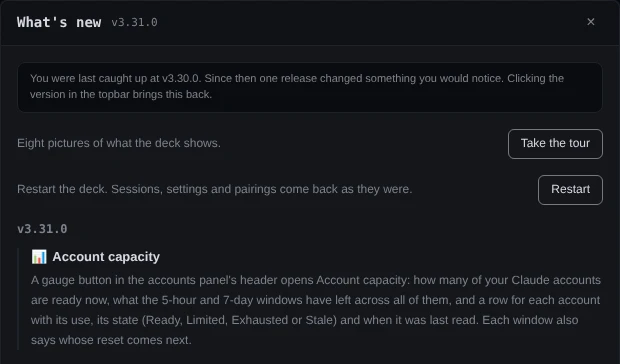 Open the full-size picture
Demo data What’s new on the first load after an update from 3.30.0: why it opened, two buttons, then the new release’s notes. The browser’s record of the last release it saw, with the deck’s answer that it can restart, was supplied to the page for this picture. It lists every release since then that has notes, newest first. × or Esc closes it, and clicking the version chip opens it again at any time.
-
Restart without an update
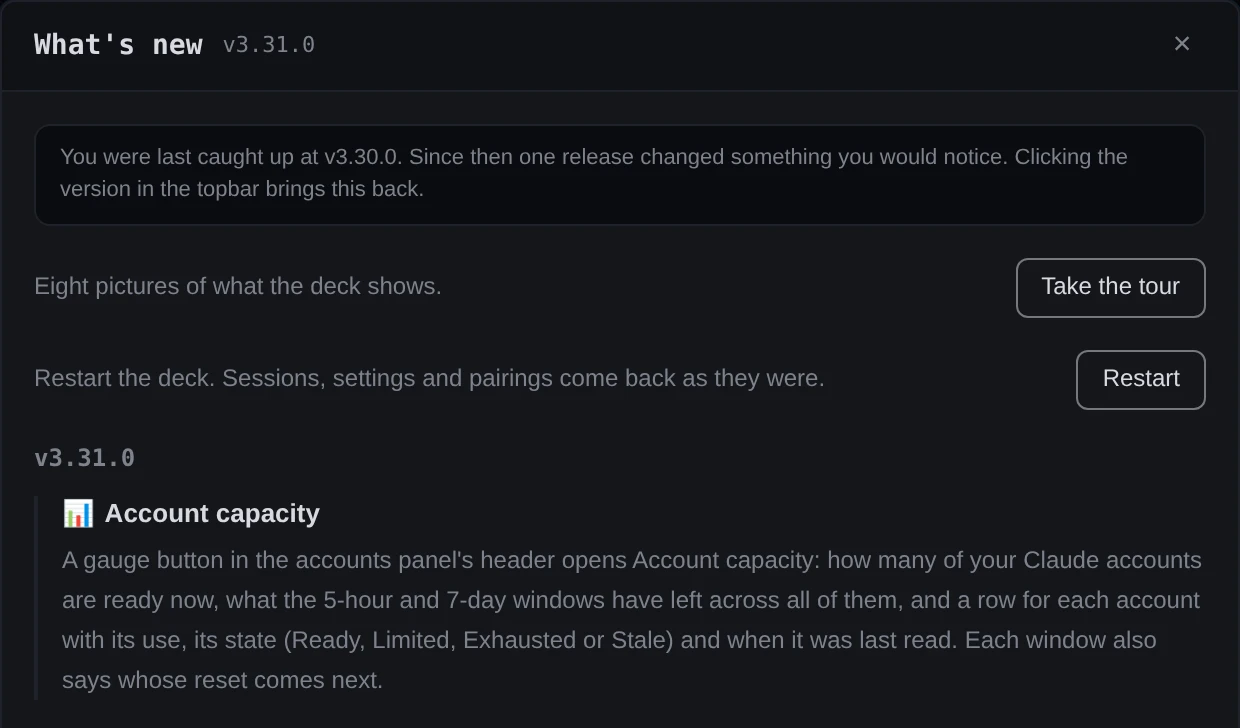
Click the version chip, then click Restart in What’s new, beside “Restart the deck. Sessions, settings and pairings come back as they were.” It is the same restart as the one in step 4, with no warning about running agents. The button is there only on a deck that can restart, and not while the desktop app has an update ready.


If something goes wrong
A release is out, and there is no notice
The deck has not asked npm since. Click the version chip to ask now, then hover over it: the tooltip says what npm last answered, or “could not reach npm” and when. For a few minutes after a release, it can say that npm’s latest tag names a version “which it cannot serve yet”; the deck looks again five minutes later. A deck started with AGENTS_DECK_NO_UPDATE_CHECK=1 or AGENTS_DECK_NO_INSTALL=1 never asks.
The notice shows a command and no button
This copy cannot update itself, and the notice says why: “this deck runs from a git checkout — pull instead:”, “the install directory is not writable by this user — run:”, “this install came from a name that is no longer published — run:”, or, for an npx deck that cannot restart, “npx runs from a cache that cannot be upgraded in place — run:”. Copy the command and run it in a terminal.
The notice says “Restart it to pick up the new code.” and has no button
The deck cannot restart without losing its canvas: it was started with --no-persist, or its event log cannot be written. Stop it with npx ccdeck --stop and start it again.
install failed: … — run it yourself:
npm failed, for example on a permission or a network error, or took more than five minutes. When the message is cut short, hover over it to read all of it. Run the command beside it in a terminal.
update failed: … — run it yourself:
npx could not fetch or start the new version, and the deck stayed on the old one. Retry update tries again. The deck tries one version twice at most, five minutes apart, then says it is “not trying again from here”. Run npx -y ccdeck@latest yourself; npx ccdeck --logs prints the deck’s log.
npx ccdeck opened the old deck again
It printed deck already running: the copy npx ran is not newer than the running deck, so it opened that deck instead of starting another. Run npx -y ccdeck@latest, the command the notice shows. --new is not a way to update: it replaces every running deck with the copy you typed, even an older one.
The deck updated or restarted while you were away
Automatic updates are on, as in step 5. The switch that turns them off shows only while the notice of step 4 does. To keep a deck from installing or fetching updates by itself, start it with AGENTS_DECK_NO_UPDATE_CHECK=1 set in its environment. It then never asks npm, so it finds nothing to install or fetch and shows no update notice; update it from a terminal when you choose. A running deck keeps the environment it started with, and a start opens a running deck of the same version instead of replacing it, so stop it first with npx ccdeck --stop. A deck started at login gets the login item’s environment, not your terminal’s.
The desktop app shows no update notice
By design. The deck inside the app never asks npm; the app updates itself from GitHub, and its version chip’s tooltip says update checks are off because of that, not because of anything you set. Use the update row in the app’s menu, or Restart ccdeck, as in Install the desktop app.