Let your machines repair each other's Claude logins
Two of your machines paired over Local network, the logins each may hand out ticked, and an expired login copied back from the other.
Before you start
- ccdeck on each machine, with Claude Code and claude-swap. The deck installs claude-swap itself; Use several Claude accounts covers the accounts panel this feature lives in.
- At least one Claude account in that panel on each machine. The Local network row appears only once the panel has read an account from claude-swap's store.
- Both machines on one local network. If they are on two subnets, a guest network or a VPN, you also need to type an address or send an invite (step 6).
- On a Mac, ccdeck started from a Terminal window or at login, so that claude-swap can read the Keychain where the login is kept.
Steps
-
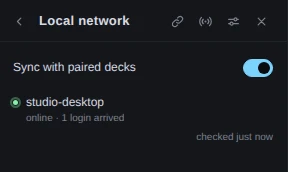
Open Local network on each machine
Click Accounts in the topbar (in a window narrower than 1440 px, only its person icon shows), or press A, to open the Claude accounts panel. Click Local network, the row at the foot of the panel. The column becomes the Local network view; the chevron at its top left (
Back to Claude accounts
) returns to the accounts.Check that the switch beside Sync with paired decks is on. It is on unless somebody turned it off. If it is off, click it: the view then opens This deck on the network by itself, which is step 2.
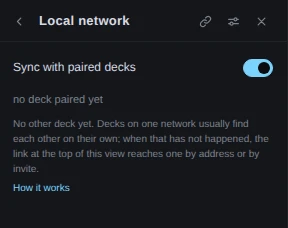
Demo data Before any other deck has turned up. The link and the sliders at the top are steps 6 and 2. This deck's Local network status was supplied to the page for this picture. While the switch is on, the deck announces its name, fingerprint and port to the local network every 30 seconds, on UDP port 45317, where every machine on the network can hear it. It also listens for other decks on a TCP port of its own.
The three buttons in the view's header carry no text. Hover over one for its tooltip; a screen reader announces the names in brackets.
- The chain link (
Add a deck
) reaches a deck that has not turned up on its own. - A dot with two rings of arcs (
Check every paired deck now
) asks every paired deck now. It is there only once a deck is paired. - The two sliders (
This deck's name and shared logins
) open this deck's settings.
Claude Code only. Every login this moves is a Claude account in claude-swap's store. Codex logins are not part of it.
- The chain link (
-
Tick the logins this machine may hand out
Click the sliders button. In This deck on the network, under Share these accounts, click the box of each login this machine may hand out, then click Done. Each box is saved as you click it.
Do this on both machines. Tick the login on the machine where it tends to expire as well: a paired deck repairs a login here only if this machine ticks it too.
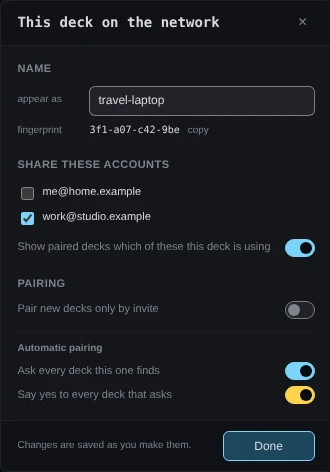
Demo data work@studio.example is ticked and me@home.example is not. The pairing switches are as ccdeck ships them. This deck's Local network status was supplied to the page for this picture. - appear as is the name other decks show for this machine: its hostname until you change it. The fingerprint under it is what you compare in step 3.
- What you tick is offered to every paired deck, not to one of them. Nothing is offered until something is ticked, and an unticked account is never named to another deck.
- Show paired decks which of these this deck is using tells paired decks which ticked login this machine is on. Turned off, they read
current account hidden
. - Ask every deck this one finds and Say yes to every deck that asks are both on, so two decks on one network pair with nobody clicking anything. A paired deck can then take a copy of any login ticked here that it does not have, with no tick of its own, and that copy is the live login. On a network you do not own, click the switch beside Say yes to every deck that asks to turn it off, or the one beside Pair new decks only by invite to turn it on.
-
Let the two decks pair
With both switches on at both ends, there is nothing to click. Each deck hears the other's announcement and asks it to pair, and the other deck's switch says yes. Rounds run once a minute, so allow a minute or two. The other machine then appears in the list, and the Local network row at the foot of the accounts panel reads
1 online
.On a machine where Say yes to every deck that asks is off, the request waits for you, and A deck wants to pair opens over the canvas. Compare the fingerprint it prints with the one the other machine shows in This deck on the network. If they match, click Accept.
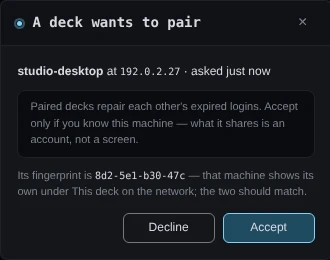
Demo data The name and the address come from the other deck; the fingerprint is the key it proved it holds. The pairing request was supplied to the page for this picture. Decline has the focus, so a stray Enter shares nothing. Declining tells the other deck no. Closing the dialog with × or Esc answers later: the request stays in the Local network view as a row, with accept and decline.
-
Open a paired deck's dialog
In the list, a paired deck that is on and has nothing to report is only its name and a green mark. Any other row says under the name what is happening, such as
waiting for them to say yes
orno answer
. Click a row to open that deck's dialog.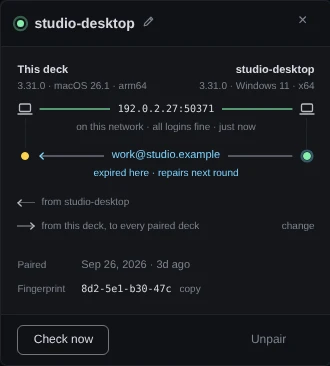
Demo data work@studio.example has expired on this machine and works on studio-desktop, which is using it (the ring), so the next round repairs it. me@home.example has no lane: neither deck ticks it. This deck's Local network status was supplied to the page for this picture. Each login either deck offers has one lane, with this deck's copy on the left and the other deck's on the right. When something is going to happen, a note under the lane says what:
arrives next round
,repairs next round
,share it to repair
, orneither copy works — sign in again here
. change opens This deck on the network. The pencil beside the name (Give it a name of your own. Only this deck sees it.
) renames the deck on this machine only. -
Let an expired login come back
When claude-swap's stored login for an account is rejected on this machine, the account's row in the accounts panel says Login expired. If a paired deck offers a copy that works there, and this machine ticks that login, the next round copies it here. The copy is claude-swap's own export on the other machine and its import on this one; the deck carries it between them, sealed to this deck.
Rounds run once a minute. To ask now, click the broadcast button at the top of the view, or Check now in the deck's dialog.
Demo data The round that brought the login says so on the row, and the lane in the deck's dialog says arrived last round
. The login that arrived was supplied to the page for this picture.After that round the account's row in the accounts panel works again. Four more rules decide what a round does:
- A login this machine does not have at all arrives the same way, ticked here or not. One that arrives over the local network is then ticked here too, so this machine can pass it on.
- An account removed here comes back on the next round while a paired deck ticks it under Share these accounts and its copy works there. To remove it for good, untick it on those decks first.
- A login that works here is never replaced.
- If neither copy works, nothing is copied, and the lane says
neither copy works — sign in again here
. Sign in again on one machine; with that login ticked on both, the other gets it on its next round.
-
Reach a deck that does not turn up
Decks on two subnets, a guest network or a VPN do not hear each other. Click the chain-link button at the top of the view to open Add a deck.
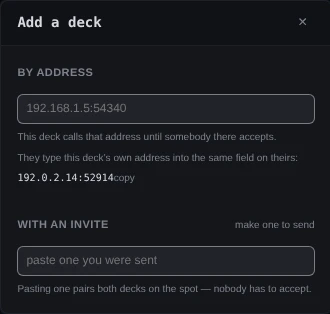
Demo data The address under the first field is this deck's own, for the other machine to type. This deck's Local network status was supplied to the page for this picture. - By address: type the address the other deck's own Add a deck dialog prints, then click add. This deck calls it until somebody there accepts; its row starts as
trying…
. - With an invite: on one machine, click make one to send, then copy, and send the text. On the other, paste it into the field and click join. The two decks pair with nobody accepting. An invite starts
ccdeck1., lasts ten minutes and works once, and anyone who has the text can pair with that deck until then.
Whoever pastes an invite is the one who dials. So when one machine cannot be reached from outside, paste the invite on that machine and make it on the other.
On a machine with Tailscale, This deck on the network has a fourth section, Tailscale. Click the switch beside Look for my devices to find the decks on your other machines over Tailscale, wherever they are. It is off until you turn it on, and only machines signed in to your own Tailscale account are asked, or answered, without a click.
- By address: type the address the other deck's own Add a deck dialog prints, then click add. This deck calls it until somebody there accepts; its row starts as
-
Unpair a deck
Hover over the deck's row, or move to it with Tab: unpair appears only then. Click unpair, then confirm within four seconds. In the deck's dialog, it is Unpair, then Confirm unpair.
Unpairing stops future rounds with that deck. Logins it already has stay with it: unpairing and unticking take nothing back. Only signing in again at Anthropic revokes a login, and that ends it on every machine. The automatic switches do not pair that deck again; if it asks, the request waits for somebody here.
If something goes wrong
There is no Local network row at the foot of the accounts panel
The panel has not read an account from claude-swap's store yet: claude-swap is missing or still installing, or no account has been added on this machine. Click + in the panel header and sign in, or wait for the install to finish.
The view still says “No other deck yet” after a few minutes
Check that Sync with paired decks is on at both ends, and read any note under the switch. If there is none, the two machines are probably not on one network that carries broadcast. Use Add a deck (step 6).
The Local network row says “nothing can get in”
This machine's firewall drops what other decks send, and the note under the switch says which firewall. Ask the other person for an invite and paste it here: whoever pastes an invite dials out, so it needs no firewall rule. Or open or let them find this deck on their own under the note, run the lines it shows (in PowerShell as Administrator on Windows), and restart the deck.
A paired row says “no answer”
The other machine is off, asleep, or drops what this deck sends. When its announcements still arrive here, its dialog says so and names the two ports to allow on that machine: UDP 45317 and the deck's TCP port.
A line under the switch says the local network goes through a VPN or a Tailscale exit node
The deck holds its announcements back, so decks on this network cannot find it. Allow local network access in the VPN; in Tailscale, turn on Allow local network access in the exit node menu. Or reach the deck by address or invite.
Sync with paired decks goes back to off
The deck was started with AGENTS_DECK_NO_LAN=1, which keeps Local network off whatever the switch says. Nothing in the view names the variable. Start ccdeck without it.
A row says “waiting for them to say yes”
The other deck has Say yes to every deck that asks off, and nobody there has answered. On that machine, compare the fingerprint and click Accept.
A lane says “share it to repair”
The login is expired here and works there, but this machine does not tick it. Click change under the lanes and tick it; the next round repairs it.
A row says “online · one-way, it calls in”
This deck has no address for that deck; the other deck calls this one. It can repair its logins from here, but this deck cannot repair from it. Add its address with Add a deck.
On a Mac, a lane says “cannot share here” or the account row says “Keychain unreadable”
That ccdeck cannot read the Keychain, for example because it was started over SSH or as a background service. The login may still be valid, so no deck tries to repair it. Start ccdeck from a Terminal window on that Mac; the next round brings it.
Joining an invite fails
The message under the field says why:
That is not an invite — paste the whole line they sent you.
Copy it again, whole. A deck older than 3.30.0 says this about any invite made on 3.30.0 or later; update that deck, or make the invite on it.That invite has run out. Ask them for a fresh one.
Ten minutes have passed, or it was already used.Nothing answered at any address in that invite.
The deck that made it is off, has its switch off, or cannot be reached from here. Make the invite on this machine and paste it on the other instead.
A red line says “Could not … — …”
What you clicked did not take effect. The line starts with what it was, such as Could not share that account
, Could not turn this on
or Could not add that address
, and says why after the dash. Its × dismisses it.
— the deck did not answer.
The deck stopped, or was restarting. Runnpx ccdeck --status; if nothing is running, runnpx ccdeck. Then try again.— this deck cannot read its settings file, so it will not write over it.
or— this deck is not allowed to save its settings.
The deck's settings file or folder belongs to another user, most often after ccdeck was run once with sudo, or another program is holding the file. Since 3.29.6 the deck says more when it can tell, for examplethis deck cannot open its settings folder, which belongs to another user
orits settings file belongs to another user and could not be moved aside
, and the line can end with the machine's own error, such asError code: EACCES.
Runnpx ccdeck --logs: the deck's log names the file or folder, and for a folder that belongs to another user it has the command that gives it back. Make it yours again, or close the other program, then try again.- On a Mac, when the folder belongs to another user, the line in the view and in This deck on the network has give it back (3.31.0 and later). Click it and type your password in the dialog macOS opens. The line then reads
Done — the settings folder is yours again, and the deck has read it again. Try that once more.
If macOS does not give it back, the line says so, and the log has the command that does it by hand. — its settings file is damaged and could not be moved aside, so it will not write over it.
Fix the file the log names, or move it aside, then restart the deck.— the deck refused it (…).
with a code in brackets, orCould not …
with nothing after it. The deck turned it down for a reason it has no sentence for, or failed while doing it. Reload the page and try again. When the deck failed, its log has the error.