Use several Claude accounts
Your Claude accounts in one ccdeck panel, each with its 5-hour and 7-day quota, and the active one changed with one click.
Before you start
- ccdeck running on a machine where Claude Code is installed. The accounts panel exists only when the deck finds Claude Code.
- At least one account signed in to Claude Code. The first time the deck starts with an empty account store, it adds that account for you.
- claude-swap, a separate tool published on PyPI, whose command is
cswap. It keeps each account's login and usage, and the panel reads what it keeps. When ccdeck starts and finds Claude Code, it installs claude-swap for you, unlessAGENTS_DECK_NO_INSTALL=1is set. - To move accounts to another machine: ccdeck and claude-swap on that machine too, and a way to carry text to it within ten minutes.
Steps
-
Open the Claude accounts panel
Click Accounts in the topbar, or press A when you are not typing in a field. In a window narrower than 1440 px the button shows only a person icon. The panel opens on the left, headed Claude accounts. On the first run it opens by itself.
The active account is at the top, with a bar for each quota window. Every other account waits behind one row, Other accounts, which says how many of them you could switch to and whether auto-switch is on. The header holds + to add an account, a gauge for a total across all of them (step 3), ↗ to share several, ↻ to read the store again, and × to close. The gauge is drawn only when there are two or more accounts.
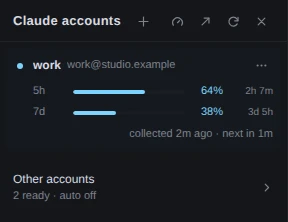
Demo data The dot marks the active account. The other two accounts are behind the row at the bottom. The gauge is the second button in the header. Claude Code only. Every account in the panel is a Claude account. A Codex login is not in it and cannot be; the deck shows Codex usage and quota elsewhere. On a machine with only Codex, the Accounts button is not drawn and A does nothing.
-
Sign in to another account
Click + in the panel header. A dialog opens on its Sign in tab. Click Open the sign-in page. The claude CLI opens a browser tab; if none opens, the dialog shows the link. Approve the sign-in there as the account you want to add.
It usually finishes by itself. If the page shows you a code instead, which happens when the deck is open from another machine, paste the code into the dialog and click Continue. The dialog then says Account N added, N being the new account's slot number, and the account you were using stays active. The new account's row has no numbers until claude-swap has read its usage.
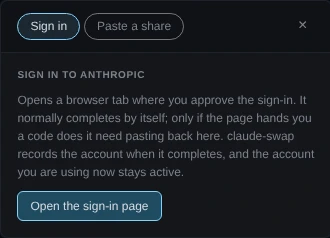
Demo data Nothing starts until you click Open the sign-in page. The Paste a share tab is for step 8. Closing the dialog cancels. Closing it with × or Esc while a sign-in is running cancels the sign-in and puts your previous account back. A sign-in left waiting ends after five minutes.
-
Open Other accounts to see every account's quota
Click Other accounts. Each account gets a row with its slot number, its name, the two figures a switch is decided by (5h and 7d), a Switch button and ⋯. Click a row to open its bars.
An open row has one bar per window: 5h, 7d, and a window per model when claude-swap reports one. Each bar gives the share used and the time until the window resets. Figures turn amber at 70% and red at 90%. Under the bars is how old the reading is and when claude-swap reads it next.
While the list is open, the Other accounts row has two more controls. The first, reading Slot, orders the list: by slot, which is claude-swap's own order; by one window, fullest or emptiest first (5h · fullest, 7d · emptiest and so on, and a model window when an account reports one); or by Most room left in each account's fullest window. A sorted list sets in bold the figure each row is sorted by, and puts last an account with no reading for it; emptiest first and Most room also put last an account with no Switch button. The second control opens every row at once or, when all are open, shuts them all; a screen reader announces it as Expand every account. This browser keeps both choices across a reload. While the pointer or the keyboard is in the list, a new reading does not move its rows until you leave it.
Hover over Other accounts while the list is shut, and a card lists the accounts you could switch to, the one with the most room first, whatever order the list is in. Moving to the row with Tab shows the same card.
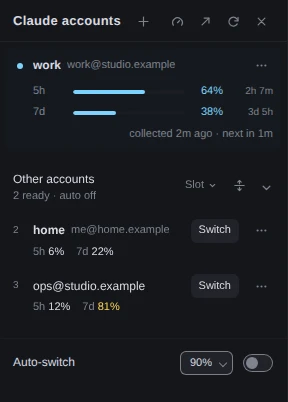
Demo data The list is in slot order. 81% is amber because it is past 70%. Auto-switch sits under the list, off (step 6). The deck does not ask Anthropic for these numbers. It shows what claude-swap last read, which can be minutes old, and says how old. Numbers older than 15 minutes are drawn muted.
For a total across every account, click the gauge in the panel header, between + and ↗. A screen reader announces it as Account capacity. The Account capacity dialog leads with how many accounts are ready, which means they have room in both windows. For the 5-hour and the 7-day window it gives the share remaining across all of them, and when the next reset is and whose. Under that, a row for each account gives its use of each window and one state: Ready, Limited (at the limit of one window), Exhausted (at the limit of both) or Stale (never read, or its stored login is dead or missing).
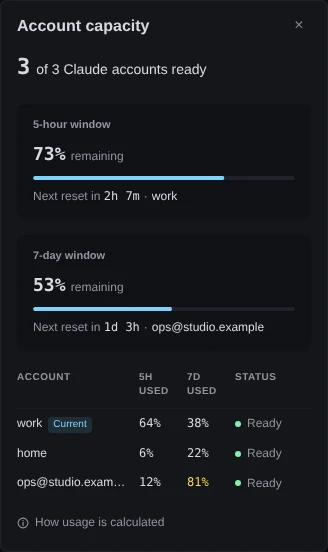
Demo data The three 5h readings, 64, 6 and 12%, average 27%, so the 5-hour window has 73% remaining. The share remaining comes from the average of every account's last reading. The deck is not told any account's limit, in tokens or in money, so every account counts the same whatever its limit is. The dialog adds up what the panel already holds and asks claude-swap for nothing more.
-
Switch the active account
Click Switch on the row of the account you want. claude-swap makes the switch, and the account moves to the top with this note under it:
Now active. New sessions start on it; ones already running pick it up on their next message, up to about 30 seconds later on macOS.
Running sessions are not restarted. A row has no Switch button when the account is held out of rotation, or when claude-swap's stored login for it is dead or missing; the row says which instead.
-
Rename, move or remove an account
Click ⋯ on the account's row. The menu holds Rename, Move to slot…, Share, Projects and Remove.
- Rename opens one field. The name you save is shown beside the address, and saving the field empty removes the name.
- Move to slot… changes the number claude-swap knows the account by. A slot marked
· swap
is taken, and the two accounts trade places. - Remove takes two clicks: the first turns it into Confirm, and a second click within four seconds deletes the account's stored login. It cannot be undone.
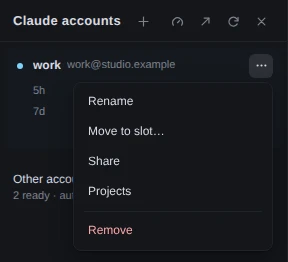
Demo data Remove stands apart, below a rule. Projects shows how much the account worked in each project. -
Turn auto-switch on, or leave it off
Auto-switch is off until you turn it on. With two or more accounts it is under the list in Other accounts; with one account, it is under that account.
Click the percentage beside Auto-switch and click a threshold in its list: 70, 80, 85, 90 or 95%. If you changed it, click save. Then click the switch beside Auto-switch to turn it on. The Other accounts row ends in
auto 90%
, or your threshold, instead ofauto off
, and the setting survives a restart of the deck.While it is on, the deck runs claude-swap's own engine once per interval, every 60 seconds unless claude-swap is set otherwise. claude-swap decides whether to switch and to which account. The deck does not choose, and it never says which account comes next. To keep an account out, click Hold out of rotation in its ⋯ menu. The item is there for every account but the active one while auto-switch is on.
If you already run
cswap autoin a terminal, the deck leaves the switching to it and says so under the switch. -
Copy your accounts for another machine
Click ↗ in the panel header. Every account starts ticked, and the line above the list counts the sign-in tokens that will be on your clipboard. Click any account you want to keep here to untick it. Then click Share 3 accounts (the number is how many are ticked), and then copy all 3.
For one account, open its ⋯ menu, click Share, then Copy.
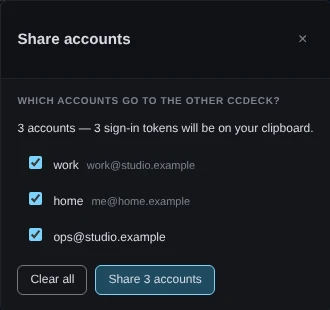
Demo data Nothing is made until you click Share 3 accounts. The count is of sign-in tokens. The text is those passwords. A share carries the live login of every account in it, in the clear. It is not encrypted. The other deck accepts it for ten minutes, and nothing signs that limit: it stops an old paste from being imported, and protects nothing else. If a copy ends up somewhere it should not, sign those accounts out and back in.
-
Paste them into the other deck
On the other machine, open ccdeck's Claude accounts panel and click +. Click Paste a share, paste the text, and click Import.
The result names each account: imported, already here, dead token replaced, updated or not imported. An account that is already there is left as it is, unless claude-swap had marked its login as dead. Click update anyway beside one only if its login has stopped working on that machine.
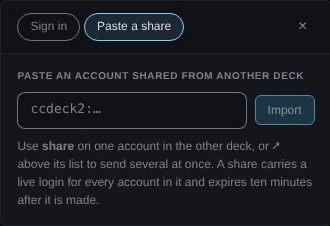
Demo data The receiving deck's side. A share starts with ccdeck2:.A share carries logins only. It is never the whole
~/.claude.json, so your projects and MCP servers are not in it. Importing changes nothing on the deck the share came from.
If something goes wrong
There is no Accounts button, and A does nothing
The deck did not find Claude Code when it started, or it was started with --no-claude. If Claude Code is installed, start the deck with --claude. That turns the Claude side on even where the deck did not find it, and the new start takes the running deck's place.
npx ccdeck --claude
The panel says “claude-swap isn't installed.” and shows a command
The deck could not install claude-swap: AGENTS_DECK_NO_INSTALL=1 is set, no installer was found, or the install failed. The claude-swap line in the deck's start-up report says which. Run the command the panel shows under the message, then click +. The deck looks for cswap again when it next reads the store, so it does not need a restart.
The panel says “No accounts added yet.”
claude-swap is installed and its store is empty, for example because Claude Code was not signed in the first time the deck started. Click + and sign in.
Sign-in fails with “the claude CLI could not be run: not on PATH”
The deck cannot find the claude command. Start the deck with AGENTS_DECK_CLAUDE set to the full path of claude.
The dialog says the account you were using could not be put back
The new account was added, but claude-swap could not switch back afterwards, so the machine is now signed in as the account the dialog names. Click Switch on your previous account.
A row says “Login expired” or “No stored login”
claude-swap's stored login for that account was rejected, or it holds none. Click the warning, then Sign in again or Sign in, and sign in as that account in the dialog that opens. An account signed in again after Login expired
keeps its slot, its name and its history.
Every row says “Keychain unreadable” (macOS)
The deck was started where it cannot open the Keychain, such as over SSH or as a background service. Start ccdeck from a Terminal window on the Mac, or let it start at login.
Other accounts says “Auto-switch has nowhere to go”
Auto-switch is on, and every other account is held out or has a dead login. Click Put back in rotation in an account's ⋯ menu, or sign in again to repair one.
The other deck refuses the paste
The message under the field says why:
that share has expired — make a new one
: more than ten minutes passed. Click make a new share on the first deck and paste the new text.that does not look like a shared account — it should start with ccdeck2:
: the text is not a share, or its start is missing. Copy it again, whole. If the message ends inccdeck1:instead, the receiving deck is older than ccdeck 3.0 and cannot read a share from a newer one; update ccdeck on that machine.that share is incomplete — copy the whole thing
: the text was cut short. Copy it again, whole.that share was made by a newer ccdeck
: the receiving deck is the older one. Update ccdeck on that machine.
Remove does not remove the account, and the menu shows a message
claude-swap declined, most often because a session is running on that account. The message says why. Switch to another account or end that session, then try again.