Move a Claude account to another machine
Your Claude accounts added to a second machine's ccdeck from one pasted text, with no new sign-in, and a choice about what stays on the first.
Before you start
- ccdeck running on both machines, each where it finds Claude Code. Without Claude Code there is no Accounts button. The panel itself is covered in Use several Claude accounts.
- claude-swap on both machines. ccdeck installs it when it starts and finds Claude Code, unless
AGENTS_DECK_NO_INSTALL=1is set. - At least one account in the first machine's Claude accounts panel.
- ccdeck 3.0 or newer on the second machine. An older deck cannot read the text a newer one makes.
- A way to carry text to the second machine within ten minutes, one you would trust with those accounts' passwords.
- Each deck open at the address it printed when it started, not through a proxy or a tunnel. A deck refuses changes that reach it any other way.
Claude Code only. The panel holds Claude accounts only. A Codex login is not in it, and cannot be moved this way.
Steps
-
Open Share accounts on the first machine
On the machine that holds the accounts, click Accounts in the topbar, or press A when you are not typing in a field. In a window narrower than 1440 px the button shows only a person icon; its tooltip is
Show accounts (A)
.In the panel header, click ↗ (a screen reader announces it as Share accounts with another deck). Its tooltip reads
Copy several accounts to another ccdeck in one paste. The text carries a live login for each one — treat it as those passwords.
The button is drawn only while the panel holds at least one account. With two or more accounts the header has five buttons: +, a gauge for account capacity, ↗, ↻ and ×.A dialog headed Share accounts asks
Which accounts go to the other ccdeck?
Every account starts ticked, and the line above the list counts sign-in tokens:3 accounts — 3 sign-in tokens will be on your clipboard.
Click the row of each account that should not go. Then click Share 3 accounts; the number is how many are ticked. Nothing is made before that click. The picker is pictured in step 7 of Use several Claude accounts.For one account, click ⋯ on its row (a screen reader announces it as More actions for, followed by the account's address), then Share. That makes the share straight away, and the menu turns into a form headed Share account.
-
Copy the share
The dialog now says
3 accounts, ready to paste
, over the share: one line that startsccdeck2:and ends in an ellipsis. Click copy all 3. It reads copied for a moment. If it does not, click the text once, which selects all of it, and copy it with Ctrl + C (Cmd + C on a Mac).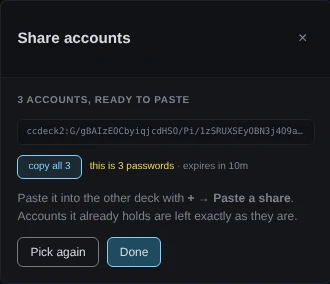
Demo data Only the start of the text shows. The warning beside the button counts passwords, and the countdown is how long another deck will accept the text. The share was supplied to the page for this picture. Beside the button:
this is 3 passwords · expires in 10m
. Under a minute the countdown turns to seconds in amber, then toexpired
in red, and the heading toThis share has expired
. The button becomes make a new share, which makes another from the same accounts.If claude-swap could not export an account, a line under the button says
One account is not in this bundle:
and gives claude-swap's reason. The text carries the other accounts, and every count in the dialog is what it carries.The one-account form works the same way:
This is the password · expires in 10m
, then Copy, which reads Copied. -
Take the text to the other machine within ten minutes
For each account, the text holds claude-swap's export of it: its address, its organization and its login tokens, compressed and base64-encoded. It is not encrypted. Anyone who has the text can use those accounts.
The other deck accepts the text for ten minutes from when it was made, not from when it was copied. Nothing signs that limit. It stops an old copy from being imported through the dialog; the logins inside it go on working after it.
Treat the text as those passwords. Carry it by a route you would trust with them. Copied text can stay in a clipboard history, or sync to your other devices. If a copy ends up somewhere it should not, sign those accounts out and back in.
The share carries logins only. It does not carry
~/.claude.json, so no projects or MCP servers, and no sessions or deck settings. -
Paste it into the other deck
On the second machine, open the Claude accounts panel and click + in its header (a screen reader announces it as Add an account). The dialog opens on its Sign in tab, where nothing starts until you click in it. Click the Paste a share tab.
Paste the text into the field, whose placeholder is
ccdeck2:…, and click Import or press Enter. The button readsimporting…
while claude-swap works, for up to a minute. The empty tab is pictured in step 8 of Use several Claude accounts. -
Read what the import did
The heading counts each outcome, and each account in the paste has a row with one word:
- imported: this deck did not have it, and now does.
- already here: claude-swap left an account it already holds as it was.
- dead token replaced: claude-swap had marked the login it holds as dead, and replaced it with the one in the share without being asked.
- updated: you clicked update anyway on that row.
- not imported: it did not arrive.
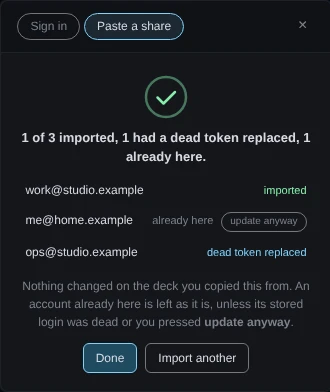
Demo data Only the already here row offers update anyway. The import result was supplied to the page for this picture. Click update anyway only when that account has stopped working on this machine. It rewrites that one account with the login in the share. It works while this result list is open and the share is inside its ten minutes, because it sends the same text again.
On a Mac, the deck then asks claude-swap whether this Mac can read what landed. If claude-swap finds a problem, the row gets a sentence saying what it is, the heading a few words, and there is no check mark (see If something goes wrong).
-
Switch to the account on this machine
Click Done. The accounts that arrived have rows in the panel, behind Other accounts. Their slot numbers are this machine's own: claude-swap numbers each store separately, so an account in slot 1 on one machine can be in slot 3 on the other.
A new row reads
no usage recorded yet
until claude-swap has read its usage; the deck asks it to read right after the import. To work as the account here, click Switch on its row, as in step 4 of Use several Claude accounts. -
Decide whether the first machine keeps it
Making the share changed nothing on the first machine. The deck only asked claude-swap for an export, so every account is still there, still works, and is still active if it was. Each machine now holds its own copy of the same login.
To keep an account only on the second machine, click ⋯ on its row on the first machine, then Remove, then Confirm within four seconds. That deletes claude-swap's stored login for it on that machine and cannot be undone. claude-swap declines while a session is running on that account, and the menu says why.
A paired deck can bring it back. If the two decks are paired over Local network, the second machine ticks this account under Share these accounts in its This deck on the network dialog, and its login still works there, the first machine takes the account back on its next round, within about a minute. Local network is on by default and pairs decks on one network without being asked, and an account that reached a deck over the local network is ticked there automatically. Untick the account on the second machine first, or unpair the two decks.
To keep it on both: a login expires on the machine that has not used it for a while. A new share from the machine where it still works repairs the other: the import replaces a login claude-swap has marked dead, and says dead token replaced; update anyway replaces one it has not marked. Local network does this without a paste between paired decks, for the accounts both of them share: see Let your machines repair each other's Claude logins.
If something goes wrong
There is no ↗ in the panel header
The panel holds no account right now; the button is drawn only when it does. Sign one in with + first. If there is no Accounts button either, the deck did not find Claude Code: see Use several Claude accounts.
The dialog says “Nothing to share”
The panel read no accounts while the dialog was open. That happens for the moment claude-swap rewrites its store, or when the store is empty. Wait a few seconds and click ↗ again, or sign an account in with +.
A red line under the list, and no share
The line says why:
- A line from claude-swap about an account: none of the ticked accounts could be exported, and this is claude-swap's reason for the first. That account's row in the panel says what is wrong with it.
cswap export took too long and was stopped
orcswap export exited
and a number: claude-swap did not finish within a minute, or failed without saying why. Try again;npx ccdeck --logsprints the deck's log.claude-swap could not open this Mac's Keychain — start ccdeck from a Terminal window on the Mac itself, not over SSH or as a background service
: do that, then make the share again.claude-swap wrote something this deck could not read — try again, and upgrade it if this repeats
,claude-swap changed format part-way through — try again
ornone of those accounts could be exported
: click the Share button again.that is more accounts than one share can carry
: more than 50 are ticked. Untick some and make two shares.
Sharing or importing says “cswap could not be run”
The whole line is cswap could not be run: not on PATH, and not in the places uv and pipx install to. Set
The deck cannot find claude-swap's command on that machine. Start the deck with AGENTS_DECK_CSWAP to its full path.AGENTS_DECK_CSWAP set to the full path of cswap, or let the deck install claude-swap.
The share says “One account is not in this bundle:”
claude-swap could not export that account, and the line under it is claude-swap's reason, or could not be exported
when it gave none. another slot already holds this address in this organization
means the same account is in two slots here, and one copy went in. Paste what you have, or fix the account first (its row in the panel says what is wrong), then click Pick again and make a new share.
copy all 3 does not change to copied
The browser refused the clipboard, and the copy failed without an error. Click the share text once to select all of it, then copy it with Ctrl + C (Cmd + C on a Mac).
The other deck refuses the paste
The red line under the field says why:
that share has expired — make a new one
: more than ten minutes passed since the share was made. The limit is set by the first machine's clock and checked against the second's, so if a fresh share fails at once, check that both clocks are right. Click make a new share on the first deck and paste the new text.that does not look like a shared account — it should start with ccdeck2:
: the text is not a share, or its start is missing. Copy it again, whole. If the message ends inccdeck1:instead, the receiving deck is older than ccdeck 3.0; update ccdeck there.that share is incomplete — copy the whole thing
: the text was cut short or changed on the way. Copy it again with the copy button.that share was made by a newer ccdeck
: update ccdeck on the receiving machine.- A line from claude-swap, or
claude-swap refused the import
when it said nothing: claude-swap's own import failed. Act on what it says; for a version or format problem, update ccdeck on both machines.
A row says not imported, and the heading says “1 did not arrive”
claude-swap accepted the paste, but that account is not in this machine's store. Make a new share of it and paste again. If it still does not arrive, sign in as it here with + → Sign in.
A row says already here, but that account does not work on this machine
claude-swap replaces only a login it has itself marked dead, and a login that died unused was never marked. Click update anyway on that row while the result list is open. If the row then says that share has expired — make a new one
, make a new share, paste it, and click update anyway within ten minutes.
On a Mac, a row has a sentence under it and there is no check mark
The account landed, and this Mac found something wrong with it:
claude-swap could not read the login keychain — start ccdeck from a Terminal window rather than a background service.
(the heading endsKeychain locked on this Mac
): start ccdeck from a Terminal window on the Mac, then paste a new share.claude-swap still holds no login for it here.
(no stored login here
): paste a new share, or sign in as the account with + → Sign in.the imported login was rejected — sign in again on a deck where it still works.
(login expired
): the login was already dead when it was shared. Sign in again as that account on a machine where it works, then share it again.claude-swap could not confirm whether this Mac can read it.
(not checked
): look at the account's row in the panel once claude-swap has read it.
The dialog says “cross-site request blocked” or “unauthenticated”
The page reached the deck through something that rewrites the address, such as a proxy or a tunnel, and the deck refused the change before running anything. The ⋯ menu says the same thing in a sentence. Open the deck on the address it printed when it started.
The dialog says “the share could not be made”, “the import failed” or “internal error”
The deck did not answer, because it was stopped or restarting, or its handler failed. When the deck did not answer, the ⋯ menu says server unreachable
instead. Check that the deck is running, then try again. npx ccdeck --logs shows what failed.
Later, the account's row says “Login expired” on one of the two machines
claude-swap's stored login there was rejected, most likely because that machine had not used it for a while. Make a new share on the machine where it still works and paste it here; the import replaces the dead login. Or click the warning, then Sign in again, as in Use several Claude accounts.
Local network says “Could not share that account — …”
That line does not come from the pasted share: a tick under Share these accounts, in Local network's This deck on the network dialog, did not take effect, and Let your machines repair each other's Claude logins explains each reason after the dash.