
Switch between multiple Codex accounts
To switch between Codex accounts, press A in ccdeck and click Codex in the Accounts panel: + signs another ChatGPT account in, each row shows its usage, and Switch makes one the default for new Codex sessions.
You will
- Sign another ChatGPT account in to Codex
- Compare how much each account has used
- Set the account new Codex sessions start on
- Let Auto-switch move to an account with room
Before you start
- ccdeck running where the Codex CLI,
codex, is on the PATH: the sign-in runs it. - A ChatGPT account for each Codex account. A login with an API key has no usage to read.
Steps
-
Open the Codex accounts
Press A, or click the Accounts icon at the top of the stripe on the left. Then click Codex in the panel's header. The switch changes only what the panel shows.
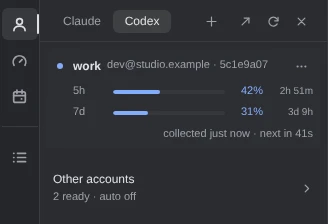
Demo data The dot marks the default account, the one new sessions start on. Codex only? Without Claude Code, the icon is Codex accounts, A opens it, and the panel has no switch.
More about the panel
- Account capacity and Reset calendar, under the Accounts icon, are Claude's.
- The first account is the login Codex already had. Each account is a Codex folder with its own login, settings and history; the first is
~/.codex, orCODEX_HOME. To list other folders you already have, start the deck withCCDECK_CODEX_HOMESset to a JSON list of their full paths. - Over SSH,
ccdeck tuilists, adds and switches Codex accounts too: see Use ccdeck from a terminal or over SSH.
-
Sign in to another account
Click + in the panel's header, then Sign in with ChatGPT. A tab opens on OpenAI's sign-in page: sign in there, and enter the one-time code the dialog shows.
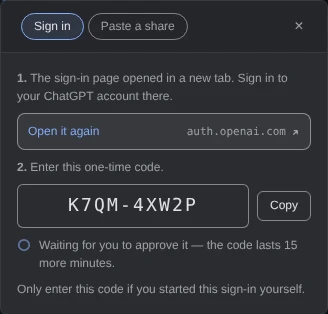
Demo data The code works in any browser, on any machine. The sign-in was supplied to the page for this picture. Once you approve it, the account is added, named after its email address. The default stays as it was.
The page signs in the ChatGPT account your browser is already signed in to. To add a different one, sign out of ChatGPT there first, or open the page in a private window.
More about signing in
- The deck runs
codex login --device-authfor a new folder of its own. Codex writes the login there; the deck never sees it. - If no tab opened, click Open the sign-in page. The code lasts 15 minutes.
- Closing the dialog while it waits cancels the sign-in.
- If the account was already listed, its stored login is replaced, or the dialog says
Already in your accounts
and adds nothing. - Paste a share, the other tab, adds an account from a code made on another deck (step 6).
- The deck runs
-
Compare the accounts' usage
Click Other accounts, under the default account. Each row gives its 5-hour and 7-day use; click a row to see its bars and when each window resets.
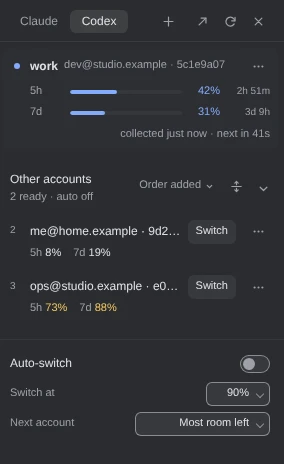
Demo data Figures turn amber at 70% and red at 90%. These are the limits OpenAI reports for each account.
More about the list
- While the panel is open, the deck reads the default every minute and the others every five minutes.
- The control reading Order added orders the rows: as added, by one window, fullest or emptiest first, or by Most room. The button beside it opens every row.
- A row with a problem says it, such as
Not signed in
orUses an API key
. Click the words to read why. - Usage, on the stripe on the right, shows the default account's quota: see Set up ccdeck for Codex CLI.
-
Make an account the default
Click Switch on its row. It moves to the top with the dot, and the Usage panel and quota notifications follow it.
For a plain
codexin your terminal to start on the default, click ⋯ on the default account, then Enable terminal selection. Run the command it copies once, then open a new terminal.Conversations already running there move too: after running tools and approvals, the same conversation carries on, on the new account.
Moving a running conversation needs Codex 0.166.0 or newer. A session started before terminal selection, or with its own
CODEX_HOME, keeps its account.More about switching
- While the switch waits, the row says so. An idle conversation moves without a message; one that was answering is paused, then resumed once.
- An open Codex app or IDE on Codex's shared server switches too, every conversation on it with its subagents. Check its
/statusafterwards. - If a Continue could not be confirmed, the row says so: check the conversation before you type. ccdeck never sends it twice.
- Terminal selection works in zsh, bash and PowerShell, with the deck closed too. Remove terminal selection copies the command that undoes it. An explicit
CODEX_HOMEalways wins. - Copy launch command, in any account's ⋯, starts Codex on that account once.
-
Turn on Auto-switch, or leave it off
Auto-switch starts off. Under Other accounts, click the percentage beside Switch at and the rule beside Next account, then turn on the switch.
Once a minute, if a fresh reading has the default at or over that threshold, the deck makes another account with room the default. With terminal selection on, a terminal task stopped by a usage limit carries on in the same conversation, on an account with room.
More about Auto-switch
- Click Set as home in an account's ⋯: Auto-switch goes there first, and comes back once it has room.
- Hold out of rotation, in another account's ⋯, keeps Auto-switch off it.
- It waits five minutes after a move, and leaves an account you switched to yourself until that one fills.
- Continuing covers
codex,codex resume <id>andcodex exec --jsonstarted through terminal selection, not the Codex app. Terminal selection set up before ccdeck 3.80.0 needs Enable terminal selection once more. - Notifications: Settings › Notifications › Account auto-switched.
-
Rename, share or remove an account
Click ⋯ on the account's row.
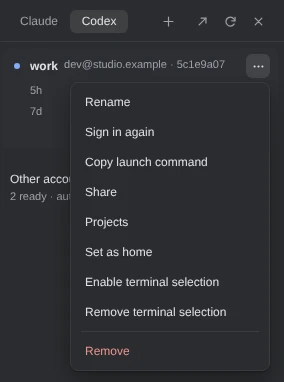
Demo data Projects shows where the account's work went, per project. Share makes a code that another deck pastes under + › Paste a share: see Copy a Claude or Codex login to another machine. Remove, on an account added in ccdeck, takes two clicks.
A share code is the account's live login. It is not encrypted and does not expire: treat it as a password, and delete the copies once it is pasted.
More about the menu
- Sign in again replaces the account's login; it keeps its settings and history.
- The share arrow in the panel's header shares several accounts at once. Both machines then renew one login, so one may have to sign in again.
- Remove keeps the account's folder, login and history aside in the deck's data folder. The login Codex already had cannot be removed.
If something goes wrong
The Accounts panel has no Codex in its header
The deck did not find Codex when it started, or was started with --no-codex. Run codex once, and the deck finds its folder within 15 seconds; or start it with --codex.
npx ccdeck --codex --ref=guides-codex-accounts
The sign-in says “Codex is not installed on this machine, or the deck cannot find it.”
Install the Codex CLI, or start the deck where codex is on the PATH. Or click Copy the terminal command and run it in a terminal.
“Already in your accounts”, or a row says “Same as your default”
OpenAI's page signed in the ChatGPT account your browser was already signed in to. Sign out of ChatGPT there, or use a private window, then click Try another account in the dialog, or Sign in on the row.
A row says “Not signed in” or “Login expired”
Click Sign in or Sign in again on that row, and sign in as that account. It keeps its settings and history.
A row says “Default saved, but the open Codex app could not switch.”
The default changed, but an open Codex app or IDE stayed on the account it had. Check which account it is on with /status in it before you go on.
Something else? See Troubleshoot ccdeck: status, logs, port and hooks.