
See which tools Claude Code and Codex use most
To see which tools and commands Claude Code and Codex run, how long they take and which fail, open Tool activity from the stripe on the right in ccdeck: it counts every call your agents made on this device, by tool.
You will
- See how many tool calls your agents made, and how long they took
- Find the tool that takes the most time or fails most often
- See how Claude Code’s time splits between Claude, this machine and you
- Choose how long the history is kept, or clear it
Before you start
- ccdeck 3.47.0 or later, running in your browser or the desktop app:
npx ccdeck. - Some Claude Code or Codex sessions. The history starts the first time ccdeck 3.42.0 or later runs; older sessions are not added.
Steps
-
Open Tool activity
Click the Tool activity icon on the stripe on the right, below Usage history and above Skill activity. It has no key. On a phone, click More in the dock along the bottom, then Tool activity.
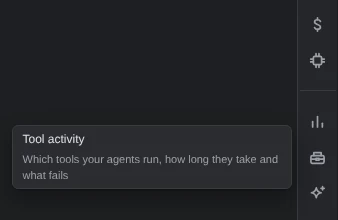
Demo data Hover an icon to see its name. -
Read the week, and what is worth a look
The dialog opens on the last 7 days of all your agents. Worth a look names up to three tools: the one that takes the most time, one that fails often and the slowest.
Under Tools and commands, each row is a tool, such as
Read, or a command, such asgit status, with its calls, total time, usual time and failures.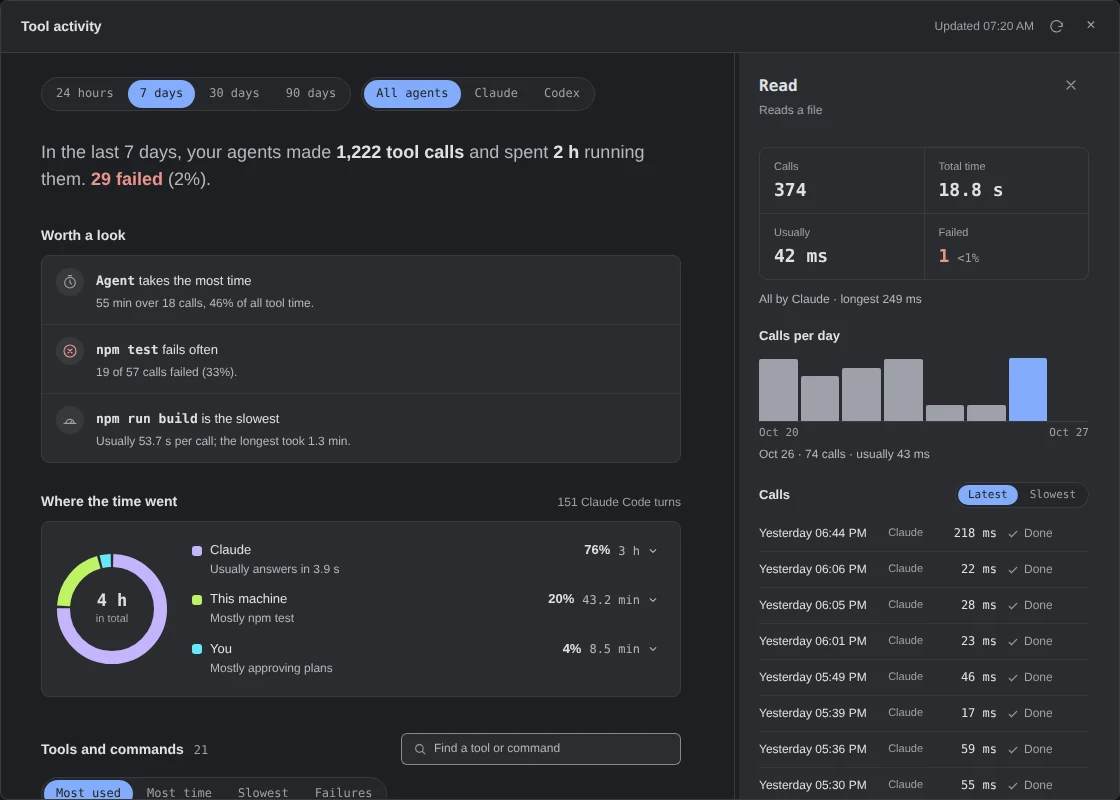 Open the full-size picture
Demo data A week of Claude Code and Codex on one project: subagents take almost half the tool time, and npm testfails 19 of 57 runs.A call’s time includes waiting for you. It runs from when the agent starts the tool until the result comes back, so a command that waited for your approval counts that wait.
More about the numbers
- Usually is the median: half the calls were quicker, half took longer.
- Total time adds every call. Calls that ran at the same time each count, so it can be more than the time that passed.
- A command line such as
git add . && git commitcounts once for each command in it, and both share its time and result. - Claude Code and Codex time their tools in different ways, so compare a tool with itself, not one agent with the other.
- A finding appears only with enough calls behind it. fails often, for one, needs five finished calls, two failures and a 10% share.
- A command ccdeck cannot name is counted as
shell (unclassified). - How this is counted, at the foot of the dialog, says the same.
-
See where the time went Claude Code only
Where the time went splits your Claude Code turns, from your prompt until Claude stops, between Claude working, This machine running tools and commands, and You answering Claude.
Click a part to see what it was made of. Turns count from the first time ccdeck 3.47.0 or later ran.
More about the split
- It follows the clock, so calls that ran together count once. A subagent’s time is its own calls’.
- A pipeline’s time goes to the command feeding it, such as
npm testinnpm test | tail. - Claude is every stretch with nothing running: the model thinking and writing, the network to it, and Claude Code itself. Its part shows how fast Claude usually answers, day by day.
- You counts the approvals, plans and questions Claude waited on. Where it waited for you to approve a tool, a line points to Settings › Claude Code, which has no row for approvals in 3.48.0.
-
Open one tool’s details
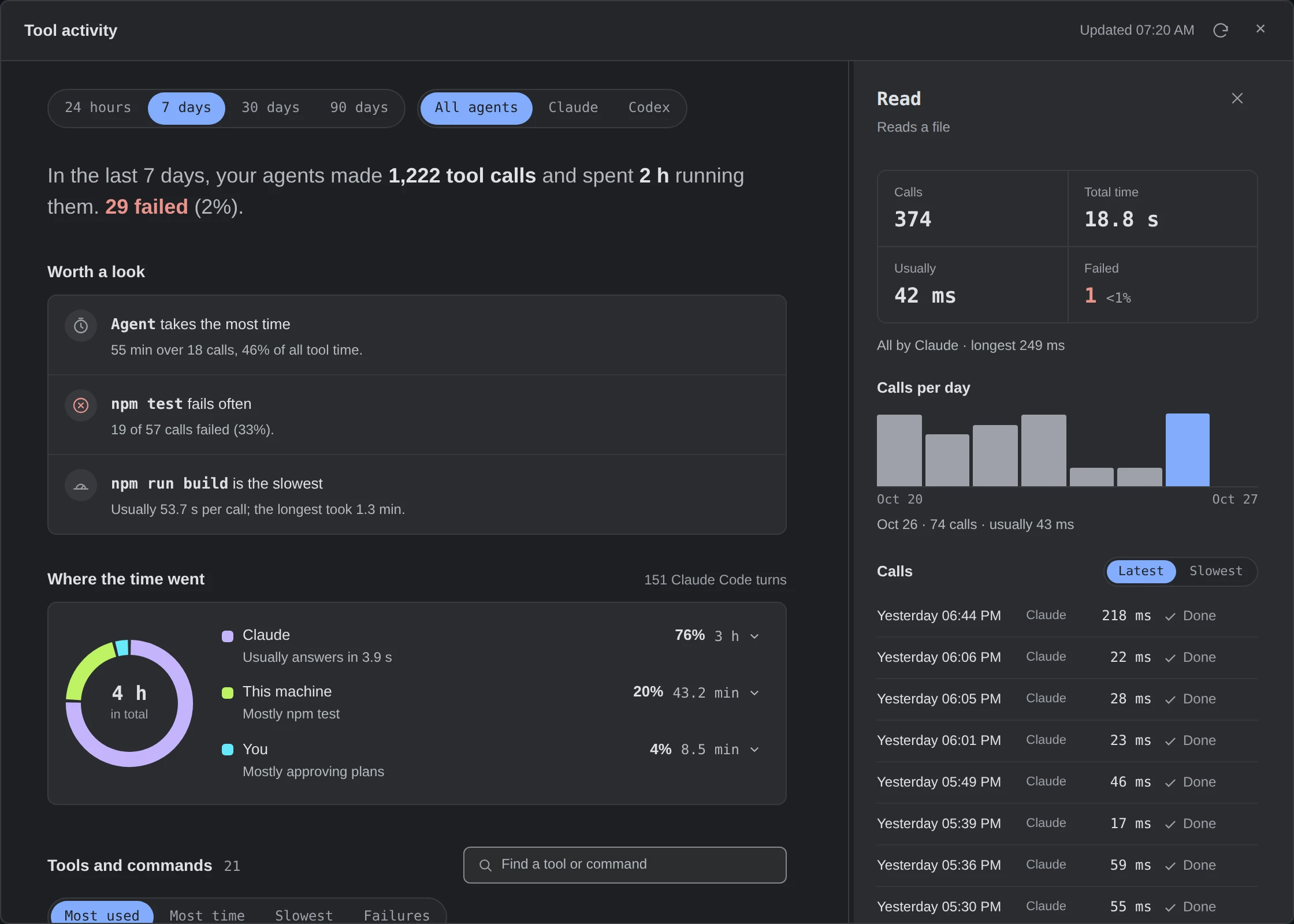
The first tool’s details open with the dialog. Click another row, or a line under Worth a look, to read its own: the same four numbers, how many calls each agent made, the longest call, Calls per day, and the tool’s Latest or Slowest calls.
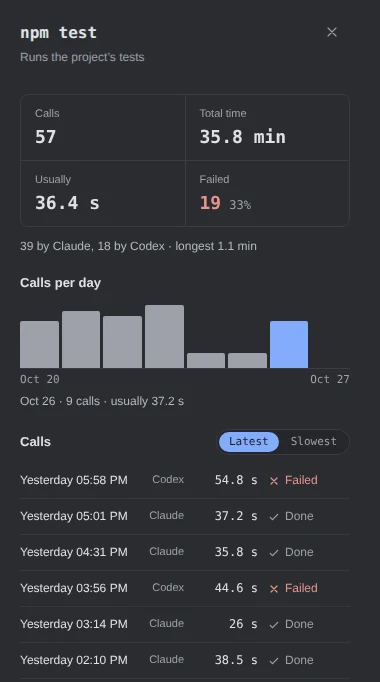
Demo data Both agents run the tests. Hover a day’s bar to read that day. On a wide window, drag the line between the list and the details to resize them; double-click it for the standard width. The
Skillrow’s details lead on to Skill activity with See which skills ran. -
Change the period, the agents or the order
Click 24 hours, 7 days, 30 days or 90 days, and All agents, Claude or Codex. Sort the list with the buttons above it, or type a name into Find a tool or command. The list shows twelve rows; Show all shows the rest.
The dialog does not update by itself: the refresh icon at its top right reads the history again.
-
Keep or clear the history
Click Settings at the right of the topbar, then Data. Under Tool history, Keep history sets 30, 60 or 90 days, 90 by default. Clear… asks before Delete tool history removes every recorded call. Recording goes on: there is no switch to stop it.
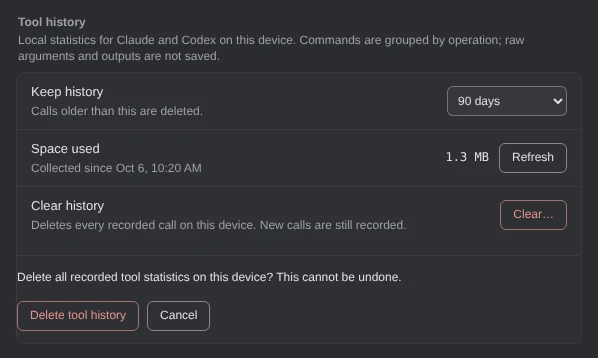
Demo data Clear… asks before it deletes anything. Uninstalling leaves the history on disk.
npx ccdeck --uninstall, with or without--purge, does not touch it. To remove it, delete thetool-auditfolder yourself.More about what is stored and where
- For each call: the tool, the command’s name (
git commit,npm test, a script’s file name), Claude or Codex, when it started and ended, and whether it failed; for Claude Code, also its own run time and whether it asked for approval, and a line for each turn’s start and end. Never its arguments, paths, prompts or output. - Skill activity’s uses are kept here too, each with the skill’s name, the session and the project folder’s name. Clearing removes them as well.
- It is kept in a
tool-auditfolder in ccdeck’s data folder:~/Library/Application Support/ccdeckon macOS,%LOCALAPPDATA%\ccdeck\Dataon Windows,~/.local/share/ccdeck(or$XDG_DATA_HOME/ccdeck) on Linux. WithCLAUDE_CONFIG_DIRset, it is inagent-daginside that folder. - One file a day,
YYYY-MM-DD.jsonl, andsettings.json. Days count in UTC. Nothing in ccdeck sends it anywhere. - Clearing keeps
settings.jsonand starts counting again from that moment.
- For each call: the tool, the command’s name (
If something goes wrong
“No tool calls in the last 7 days”
The history starts the first time ccdeck 3.42.0 runs, and Claude Code’s calls reach it only while ccdeck is running. Run a session, then click the refresh icon. Check that All agents is on.
A tool’s time shows “—”
None of its calls has a time yet. A call counts when it starts, and gets its time and result when it ends; one that ended while ccdeck was not running may never get them.
“Some calls could not be saved or read”
ccdeck could not save or read part of the history, so the numbers may be a little low. Check the free space on the disk that holds ccdeck’s data folder.
“Could not build the tool report”
The dialog words it “Could not build the report”. Click Try again. If it keeps failing, set Keep history to fewer days in Settings › Data: the report reads the whole history each time.
The history is still there after uninstalling
--uninstall removes ccdeck’s hooks and --purge its key, not this history. Delete the tool-audit folder in ccdeck’s data folder (step 6 says where).
Something else? See Troubleshoot ccdeck: status, logs, port and hooks.