
Connect GitHub or GitLab to ccdeck
To read GitHub or GitLab in ccdeck, open Settings › Integrations, click Connect beside GitHub or GitLab, paste a read-only personal access token, then click its icon on the stripe on the left to open branches, merge requests, pipelines and issues.
You will
- Connect GitHub, GitLab.com or your own GitLab with a read-only token
- Follow branches, merge requests, pipelines and issues beside your agents
- Read why a job failed without leaving the deck
Before you start
- ccdeck 3.47.0 or newer. Update ccdeck to the latest version says how.
- An account on github.com, GitLab.com or your company's GitLab that can see the projects you want. The deck does not connect to GitHub Enterprise Server.
Steps
-
Make a personal access token
The deck reads as you, with a token you make in your account's settings. It only reads, so give the token read access and nothing more.
- GitHub, fine-grained token: the repositories you want, with read-only access to Actions, Checks, Commit statuses, Contents, Issues, Metadata and Pull requests.
- GitHub, classic token: the
repoandread:orgscopes. - GitLab: the
read_apiscope alone.
More about the token
Contents is for branches and commits; the panel never opens your files. An organization may have to approve a fine-grained token, or a classic one be authorized for its single sign-on, before its repositories show.
If a scope is missing, Settings says so when you click Manage beside GitHub or GitLab: without
repo, private repositories are hidden; withoutread_api, GitLab refuses the lists. GitLab tokens expire; when yours does, the panel says so. -
Connect in Settings
Click Settings in the topbar, then Integrations, then Connect beside GitHub or GitLab.
Paste the token. For your own GitLab, click Self-managed and enter the address you open it at. Click Connect: the deck checks the token before it saves anything.
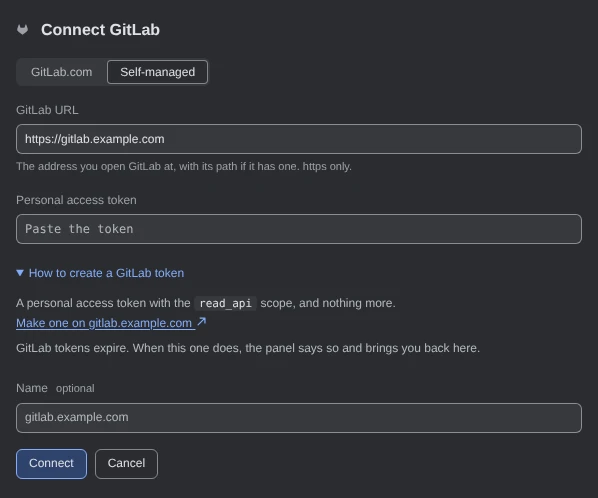
Demo data How to create a GitLab token opens help with a link to the token page on the GitLab you typed. More about your own GitLab
The address must use https, with its path if GitLab lives under one. Plain http is accepted only for a server on this machine.
The deck checks every certificate and has no way to skip one, and it has no proxy setting. If your GitLab's certificate comes from your company's own certificate authority, stop the deck with
npx ccdeck --stop, then start it again with that authority's PEM file:NODE_EXTRA_CA_CERTS=/etc/ssl/certs/company-ca.pem npx ccdeckUse your own file's full path. GitLab older than 16 connects, but some review and approval details may be missing.
-
Open the panel
Click the GitHub or GitLab icon on the stripe on the left, below the session list icon. It has no key. On a phone, click More, then GitHub or GitLab.
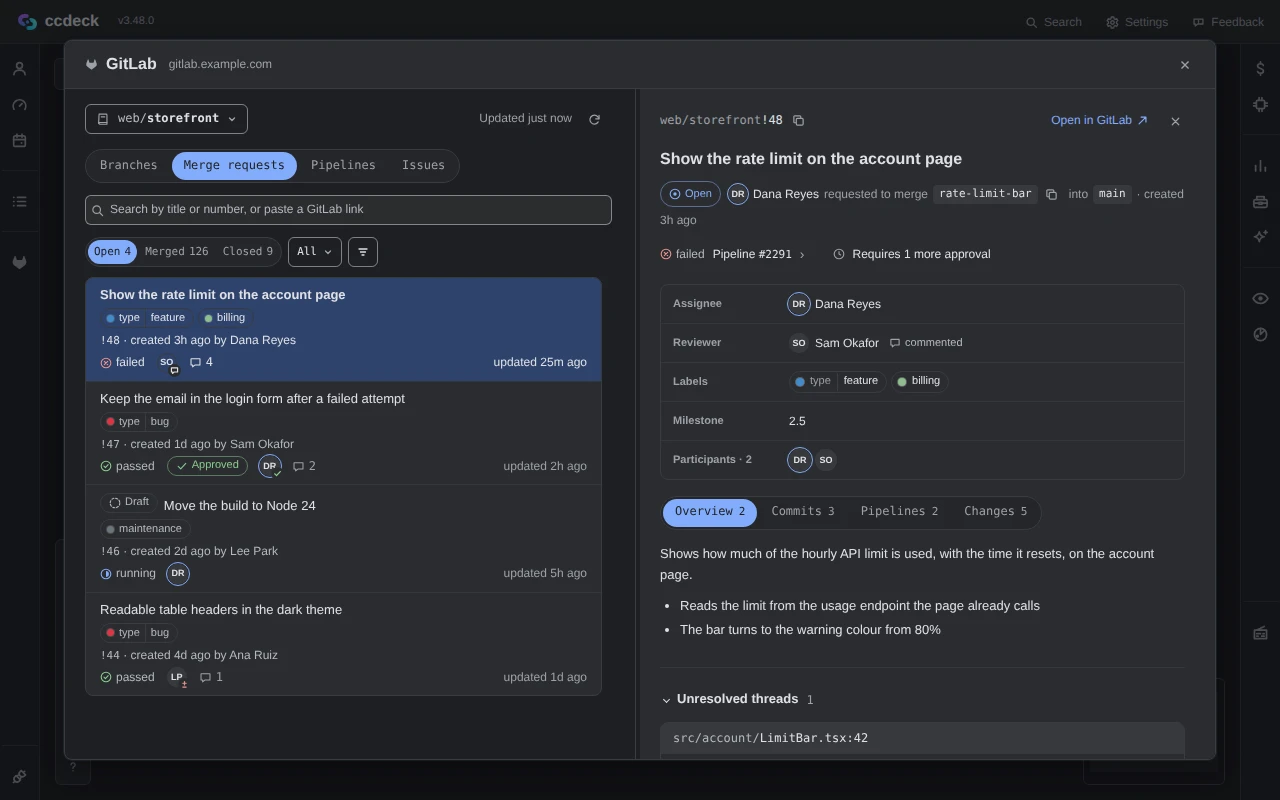
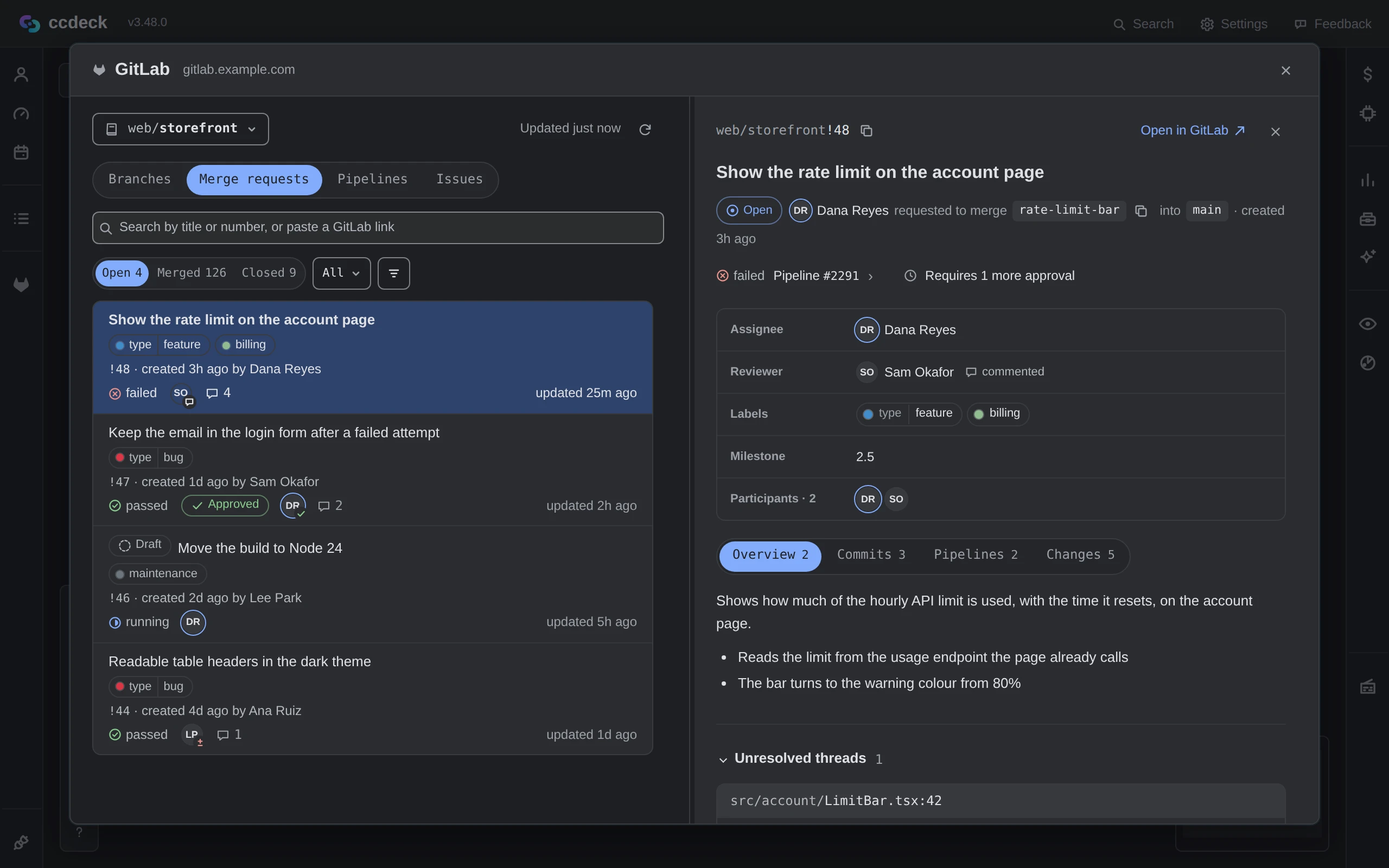
Pick a project at the top left. The tabs are Branches, Merge requests (Pull requests on GitHub), Pipelines (Actions on GitHub) and Issues.
 Open the full-size picture
Demo data Each row shows its pipeline and review state; the one you clicked opens beside the list. More about what the deck reads
- It reads only while the panel is open: when you open a tab last read more than two minutes ago, or click the refresh icon beside Updated. A running pipeline is not followed.
- Every request goes from the deck on your machine to github.com or your GitLab, signed with your token, and every one is a read. The deck never merges, approves, comments, retries a job or changes anything.
- The token is kept in the deck's data folder, in
integrations/, in a file only you can read. It is never shown again, never logged, and never sent to the page or to a paired deck. - This browser remembers the project, the tab and the filters; until you reload the page, the panel also reopens on the item, search and scroll you left.
-
Find a merge request
Use the filters under the tabs, or type a title or number in the search box. To jump to one you have a link for, paste the link there and click Open.
Click a row to read it beside the list, and Open in GitLab or Open in GitHub to open it in your browser. On a wide screen the first row is already open there. On a phone, or in a window narrower than 900 pixels, a row opens as its own screen with Back.
More about the keyboard
The tabs and the list are one Tab stop each. In the tabs, ← and → switch tab. In the list, ↑ and ↓ move a row, Home and End go to the ends, → opens a folded group, ← folds it or goes up to its group, and Enter opens the row. Esc closes the detail first, then the panel.
-
Read why a pipeline failed
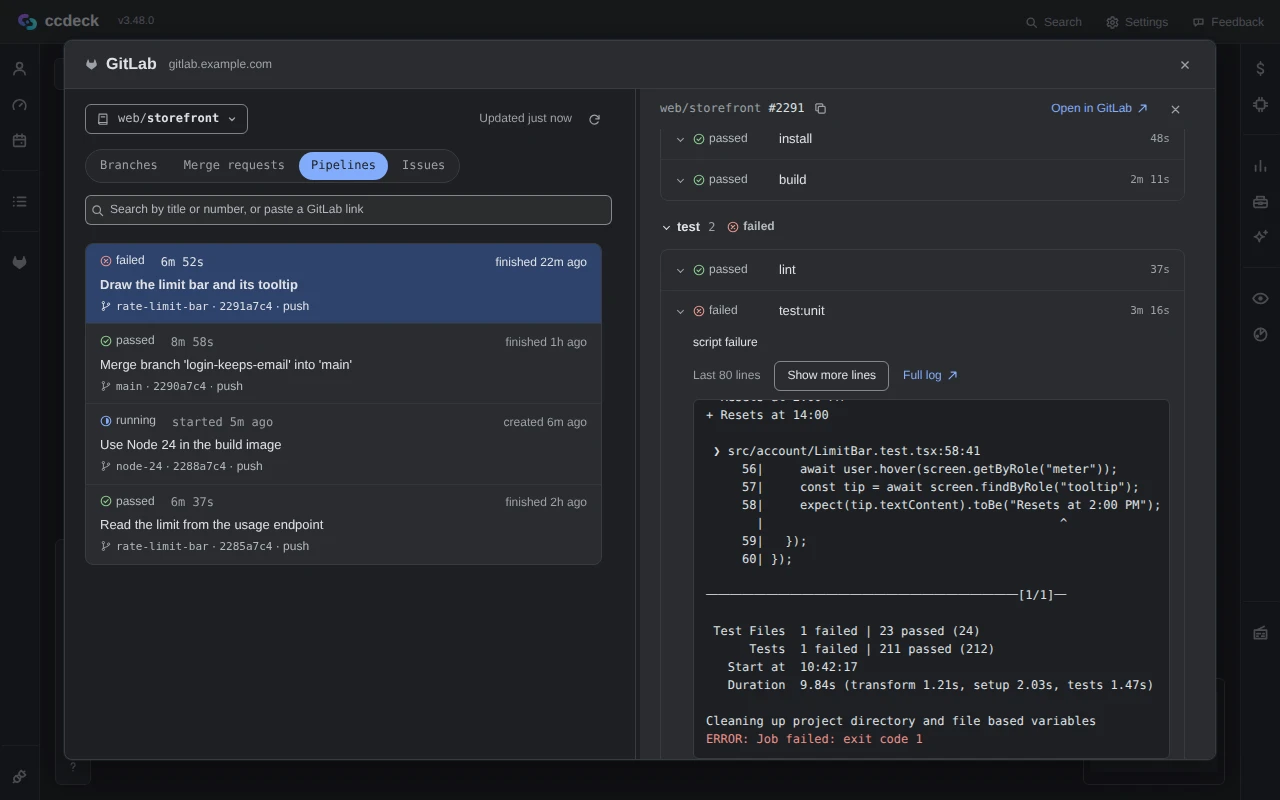
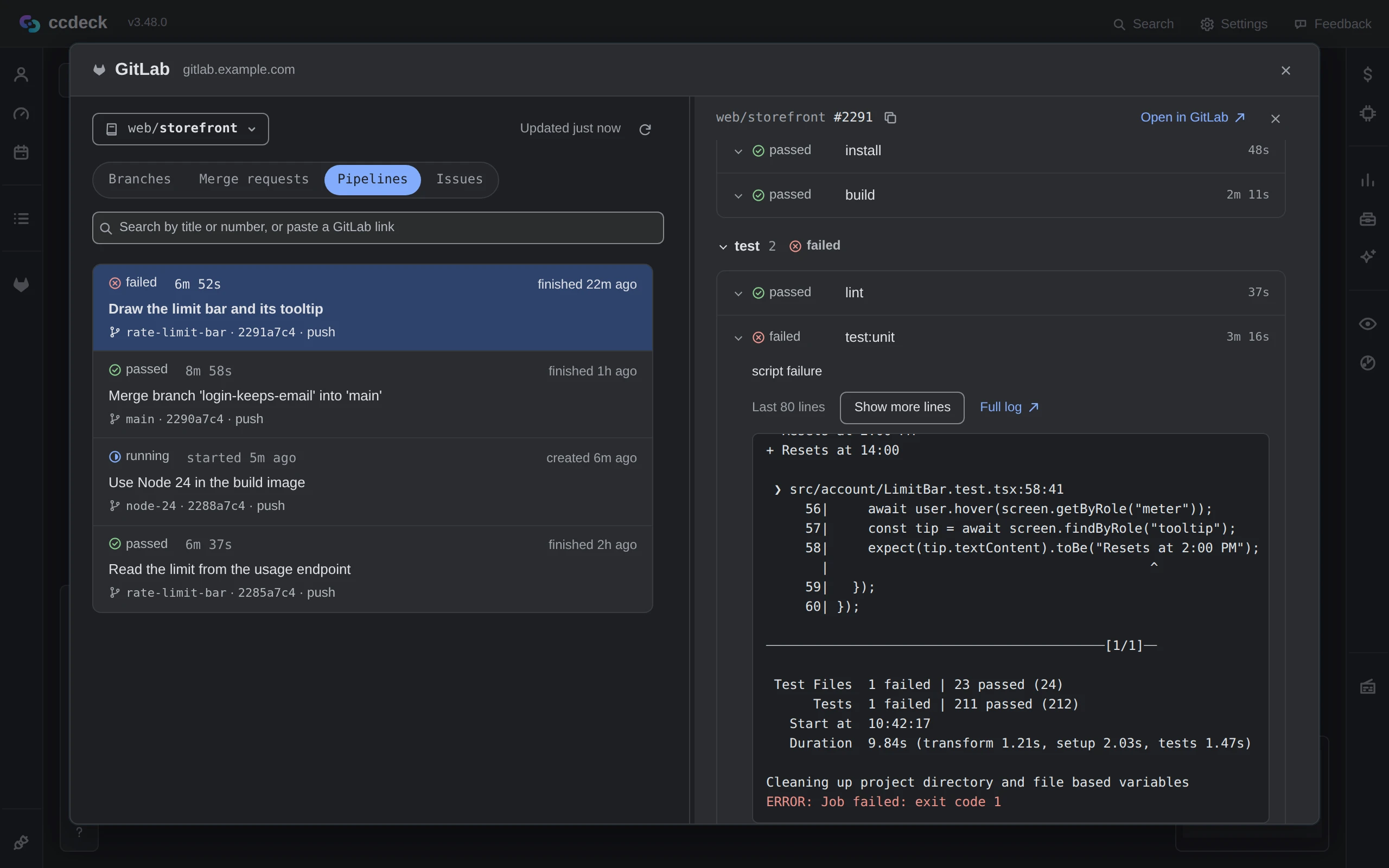
Click the Pipelines tab, then the failed pipeline. Its jobs are listed by stage. Under a failed job, click Show log to read its last 80 lines, and Show more lines for 200, then 500. Full log opens the whole log on GitLab or GitHub.
 Open the full-size picture
Demo data The log is read only when you ask for it, and the panel keeps your place when you ask for more. -
Disconnect when you are done
In Settings › Integrations, click Manage beside GitHub or GitLab, then Disconnect, then Confirm disconnect. The deck deletes the connection and its saved token from this machine.
Uninstalling does not delete the token.
npx ccdeck --uninstall, even with--purge, leaves saved tokens on disk. Disconnect first, then delete the token on GitHub or GitLab.
If something goes wrong
GitHub or GitLab did not accept the token, or it has expired
While you connect, check that you pasted the whole token. Later, when the panel says the saved token was not accepted or has expired, make a new one and click Reconnect.
The token cannot read this, or a project is missing
The token lacks a scope from step 1, or your organization has not approved it yet. Click Open connection settings and connect with a token that has them.
GitHub or GitLab did not answer, or its certificate is not trusted here
Check the network or VPN, and that the site is up, then click Try again. For a certificate from your company's own authority, start the deck with NODE_EXTRA_CA_CERTS as in step 2.
Your own GitLab: “This is not a GitLab the deck can read”
The address answered with a web page instead of GitLab's API, often a sign-in page in front of GitLab, or sent the deck to another address. Click Open connection settings and enter the address you open GitLab at, with its path.
The panel says “Not updated · last answer 5m ago”
The last refresh failed, so the rows on screen are from the read before it, and the reason is above them. Fix what it says, then click Try again.
Something else? See Troubleshoot ccdeck: status, logs, port and hooks.