
Connect Jira, read your board and move issues
To use Jira in ccdeck, open Settings › Integrations, click Connect beside Jira, paste a Jira token, and press I to open your board beside your agents; browsing only reads, and on a Scrum board ordered by Rank you can also move issues between sprints.
You will
- Connect Jira Cloud or Jira Server / Data Center with a token
- Open your board beside your agents and filter it
- Move issues between sprints and the backlog
- Know what the deck reads and changes, and remove the token when you are done
Before you start
- ccdeck 3.48.0 or newer. Update ccdeck to the latest version says how.
- Jira Cloud, or Jira Server or Data Center 8.14 or newer, and a Jira account that can see your board.
Steps
-
Make a Jira token
The deck works in Jira as you, with a token you make there. It only reads, unless you move an issue (step 5).
- Jira Cloud: make an API token at id.atlassian.com, under Security, then API tokens. You also need the e-mail address of your Atlassian account.
- Jira Server or Data Center: in Jira, click your avatar, then Profile, Personal Access Tokens and Create token.
More about Jira tokens
A classic Cloud token, and a Server or Data Center token, act with your account's permissions. A Cloud token made with scopes works too: the deck finds your site's api.atlassian.com address itself, and the token needs these read scopes:
read:jira-work,read:jira-userandread:jql:jiraread:board-scope:jira-softwareandread:board-scope.admin:jira-softwareread:sprint:jira-software,read:epic:jira-softwareandread:issue-details:jira
To move issues, a scoped token also needs
write:issue:jira-software,write:sprint:jira-softwareandwrite:board-scope:jira-software. Without them it still reads your board.Give a Server or Data Center token an expiry you are comfortable with. Personal access tokens arrived in Jira 8.14, so the deck cannot connect to an older server.
-
Connect Jira in Settings
Click Settings in the topbar, then Integrations, then Connect beside Jira.
Click your kind of Jira, enter the address you open it at and paste the token; on Cloud, add your account's e-mail address. Click Connect: the deck checks the token with Jira before it saves anything.
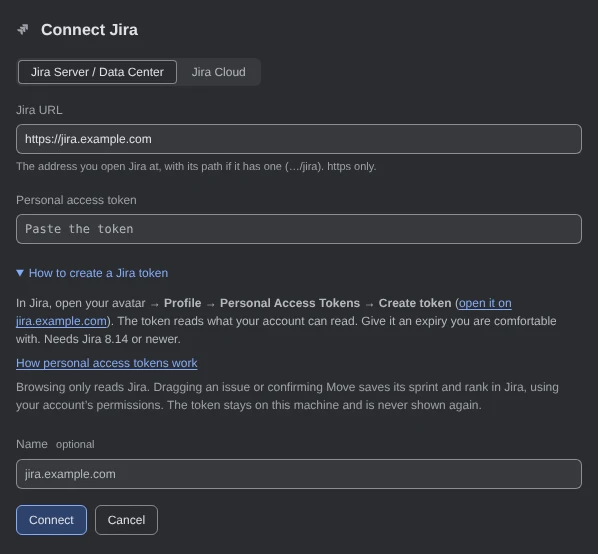
Demo data How to create a Jira token opens help for your kind of Jira, linking to your server's token page. More about a self-hosted Jira
The address must use https, with its path if Jira lives under one (
…/jira). Plain http is accepted only for a server on this machine. If the deck says this is not a Jira it can read, check the path and the kind of Jira you clicked.The deck checks every certificate and has no way to skip one, and it has no proxy setting. If your server's certificate comes from your company's own certificate authority, stop the deck and start it again with
NODE_EXTRA_CA_CERTSnaming that authority's PEM file:npx ccdeck --stopNODE_EXTRA_CA_CERTS=/etc/ssl/certs/company-ca.pem npx ccdeckUse your own file's full path. In PowerShell, set
$env:NODE_EXTRA_CA_CERTSfirst, then runnpx ccdeck. -
Open your board
Press I, or click the Jira icon on the stripe on the left, below the session list icon. On a phone, click More, then Jira.
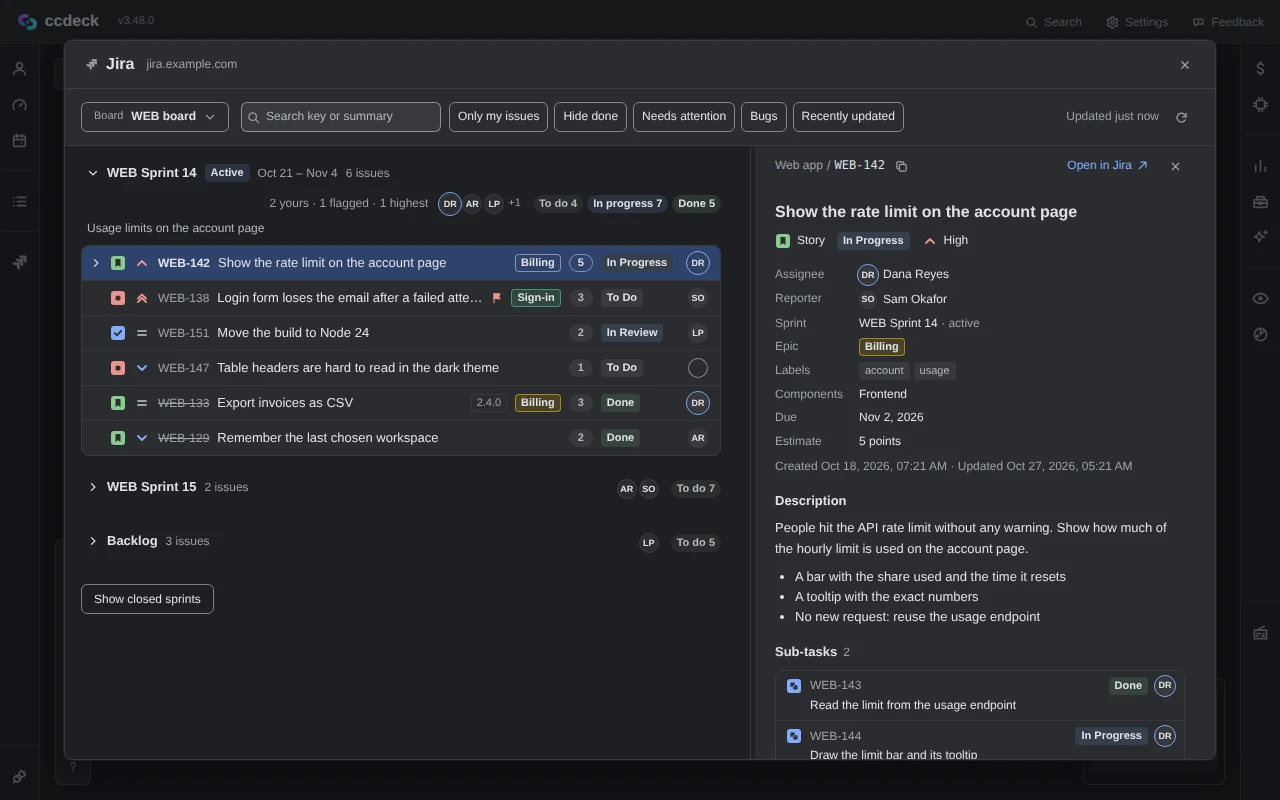
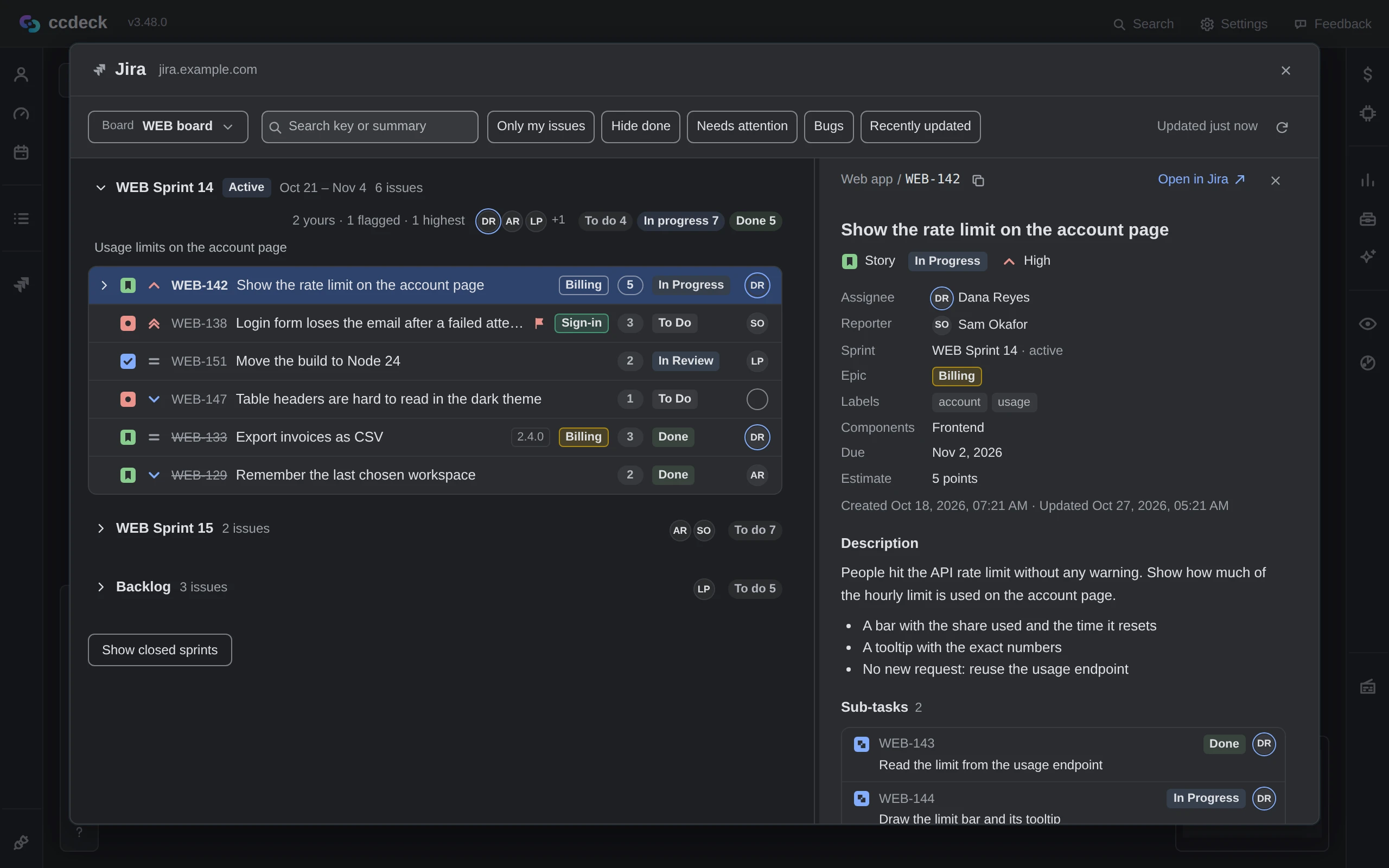
A sprint board opens on its active sprint, with the next sprints and the backlog folded under it. Click Board to pick another board.
 Open the full-size picture
Demo data The sprint in Jira's own rank order, and the issue you clicked beside the list. Only my issues is off here, to show the whole sprint. More about what the deck reads
- It reads Jira only while the panel is open: when you open a board last read over five minutes ago, when you click the refresh icon beside Updated, and after a move. Nothing polls.
- Every request goes from the deck on your machine to your Jira, signed with your token. Browsing only reads; a move changes the issues' sprint and rank and nothing else. The deck never comments, assigns, changes a status or logs work.
- The token is kept in the deck's data folder, in
integrations/, in a file only you can read. It is never shown again, never logged, and never sent to the page or to a paired deck. - What the panel reads is not saved to disk. This browser remembers the board, the filters and which groups were open; until you reload the page, the panel also reopens on the issue, search and scroll you left.
-
Filter the board and open an issue
Only my issues is on at first: click it to see everyone's. Hide done, Needs attention (flagged or top priority, and not done), the board's own quick filters and the search box narrow the list; Clear filters turns them all off.
Click a row to read the issue beside the list, and Open in Jira to open it in your browser. On a phone, an issue opens as its own screen with Back.
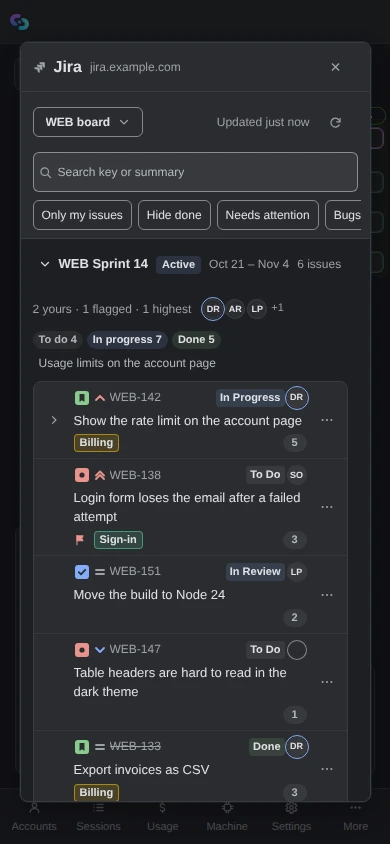
Demo data On a phone the list keeps the screen and the filters scroll sideways. More about the keyboard
The list is one Tab stop. ↑ and ↓ move between the rows and the sprint headers, Home and End go to the ends, → opens a sprint or a row's sub-tasks, ← closes it or goes back to the parent, and Enter opens the issue. Esc closes the issue first, then the panel.
-
Move issues between sprints and the backlog
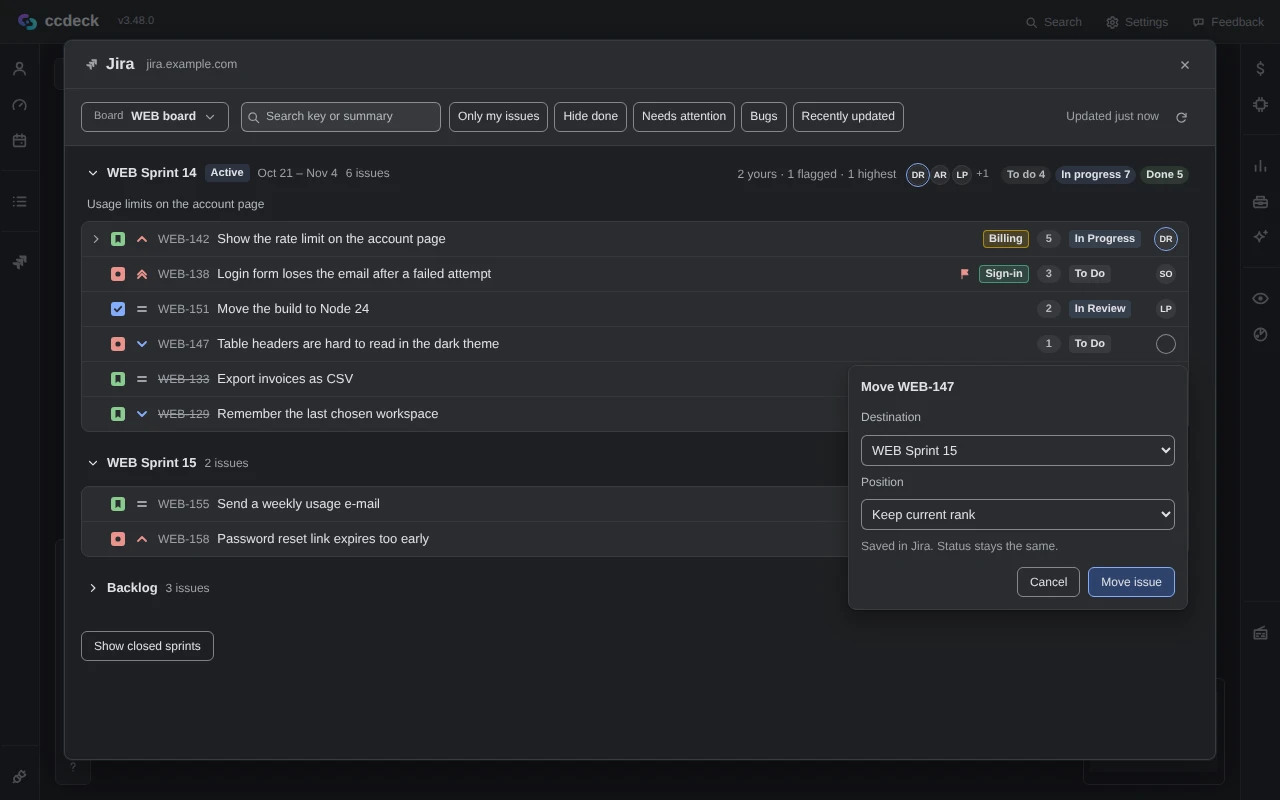
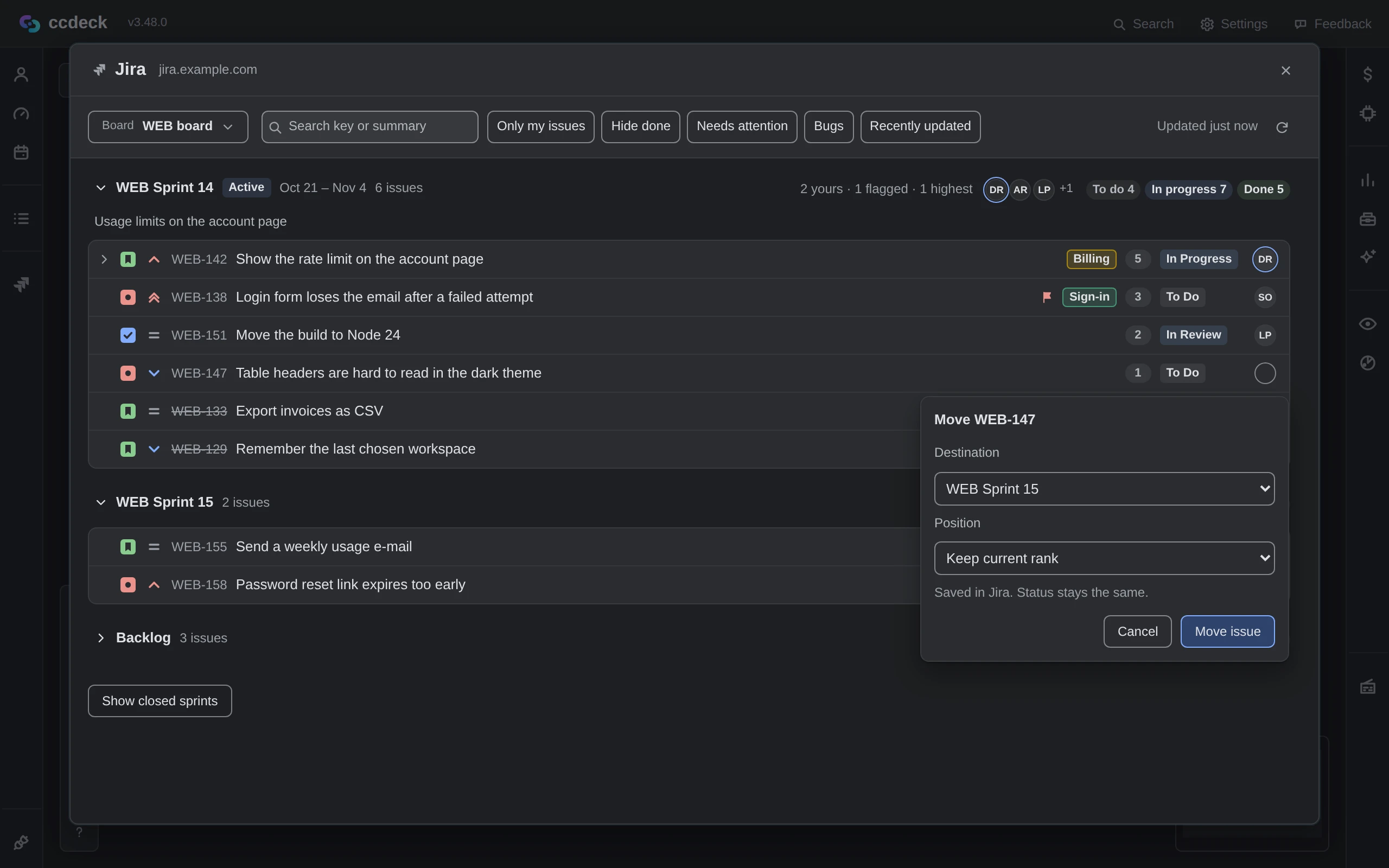
Drag an issue onto another sprint or the backlog, or between two rows to change its place. Or right-click it (on a touch screen, click its ⋯ button), click Move…, pick the Destination and Position, and click Move issue.
To move up to 50 at once, Ctrl-click or Shift-click them (Cmd-click on a Mac), then drag them or click Move selected.
 Open the full-size picture
Demo data Saved in Jira as you; the issue keeps its status. Moving works on a Scrum board whose filter ends with
ORDER BY Rank ASC, for unfinished issues that are not sub-tasks or epics. On other boards the move controls are missing, with no reason shown.More about moving issues
On a row, Alt+M opens Move, Shift+F10 opens its menu, and Space adds it to the selection or takes it out.
Position puts the issues before another issue in the destination, or after its last; Keep current rank leaves their rank alone. A move sets the sprint, or the backlog, then the rank. Jira decides with your permissions, and the deck never sends a move twice: an answer that went missing may still mean Jira saved it.
-
Disconnect when you are done
In Settings › Integrations, click Manage beside Jira, then Disconnect, then Confirm disconnect. The deck deletes the connection and its saved token from this machine.
Uninstalling does not delete the token.
npx ccdeck --uninstall, even with--purge, leaves saved Jira tokens on disk. Disconnect first, then revoke the token in Jira.
If something goes wrong
Jira did not accept the token, or it has expired
While you connect, check that you pasted the whole token and, on Cloud, its account's e-mail address. Later, when the panel says the saved token was not accepted or has expired, make a new one and click Reconnect.
The token cannot read this
Your account cannot see that board or project, or a scoped Cloud token lacks a read scope from step 1. Click Open connection settings and connect with a token that has them.
Jira did not answer, or its certificate is not trusted here
Check the network or VPN, and that Jira is up, then click Try again. For a certificate from your company's own authority, start the deck with NODE_EXTRA_CA_CERTS as in step 2.
Jira refused the move, or did not confirm it
A refusal means your Jira account may not edit and schedule that issue, or a scoped Cloud token lacks a write scope from step 1. If a move was not confirmed, some issues may have moved: check the board, which the panel reads again, before you retry.
Something else? See Troubleshoot ccdeck: status, logs, port and hooks.